



Product Highlights

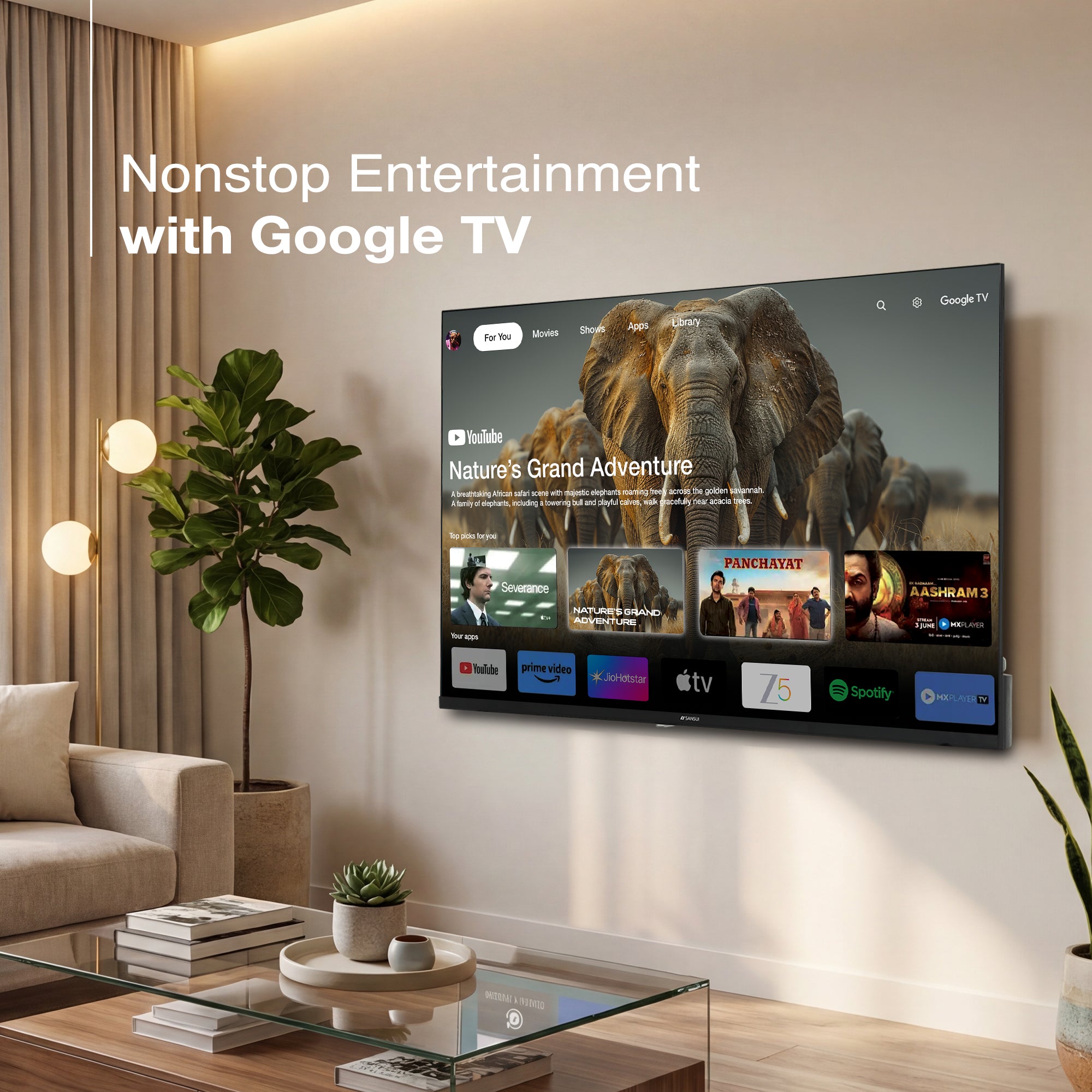
GOOGLE TV
ENDLESS ENTERTAINMENT

1080p
FULL HD

HDR10
DISPLAY BRILLIANCE

DOLBY
AUDIO

SURROUND
SOUND

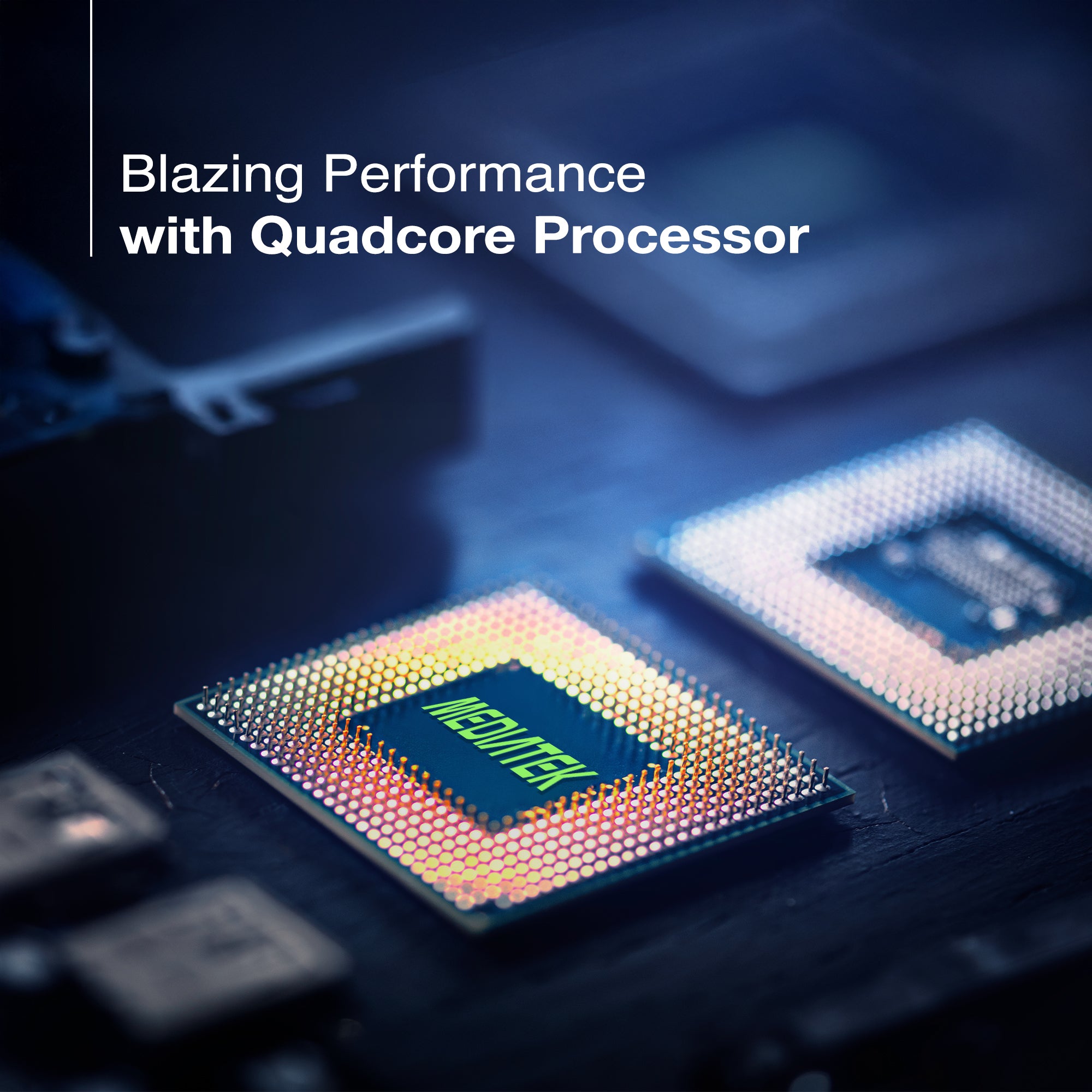
QUAD CORE
PROCESSOR

1.5GB
RAM

8GB
ROM

BEZEL
LESS DESIGN

GOOGLE
ASSISTANT

FloLED
Sansui 102cm (40) Full HD Google TV with HDR10, Dolby Audio, Surround Sound, Google Assistant & FloLED (JSW40FHG5)
Save 46% (Price Updated with New GST Benefits)
Sale priceRs. 21,490.00Regular price
Rs. 39,990.00
Product Highlights
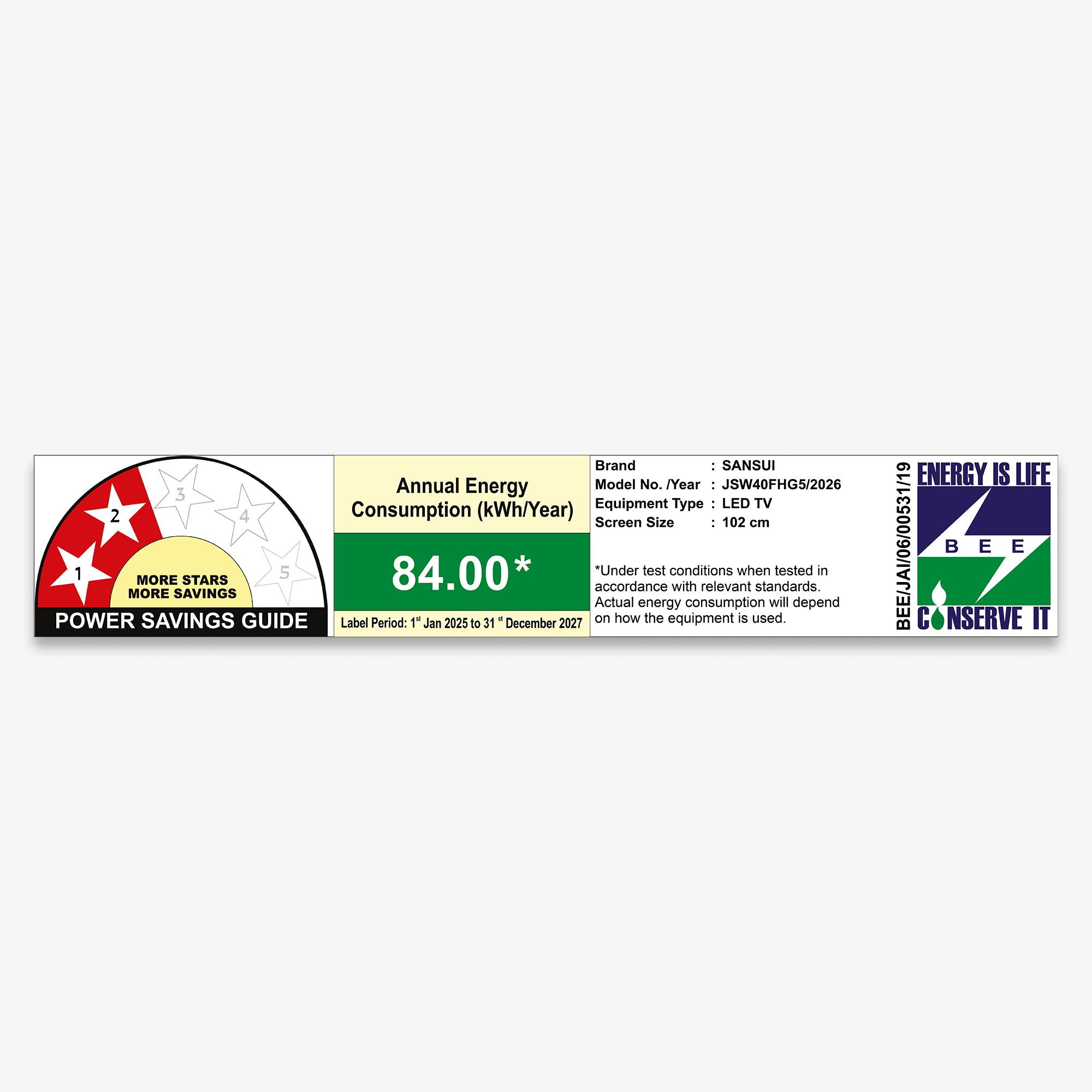
- Model Name : JSW40FHG5
- Display: Full HD, HDR10, FloLED
- Resolution: 1920x1080 Pixels
- Refresh Rate: 60 Hz
- Sound Output: 20W Speaker (2 X 10W), Dolby Audio
- Operating System: Google TV
- Processor: CA53 Quad Core 1.1GHz | RAM 1GB | ROM 8GB
- Wi-Fi 2.4G/5G | Bluetooth 5.0
- Supported Apps: Netflix | Prime Video | JioHotstar | YouTube | Google Play Store
Product Highlights
GOOGLE TV
ENDLESS ENTERTAINMENT
1080p
FULL HD
HDR10
DISPLAY BRILLIANCE
DOLBY
AUDIO
SURROUND
SOUND
QUAD CORE
PROCESSOR
1.5GB
RAM
8GB
ROM
BEZEL
LESS DESIGN
GOOGLE
ASSISTANT
FloLED
Find Nearby Stores
Shop now
Spotlight
Upgrade Your Entertainment with Sansui 102 cm (40-inch) Smart TV.
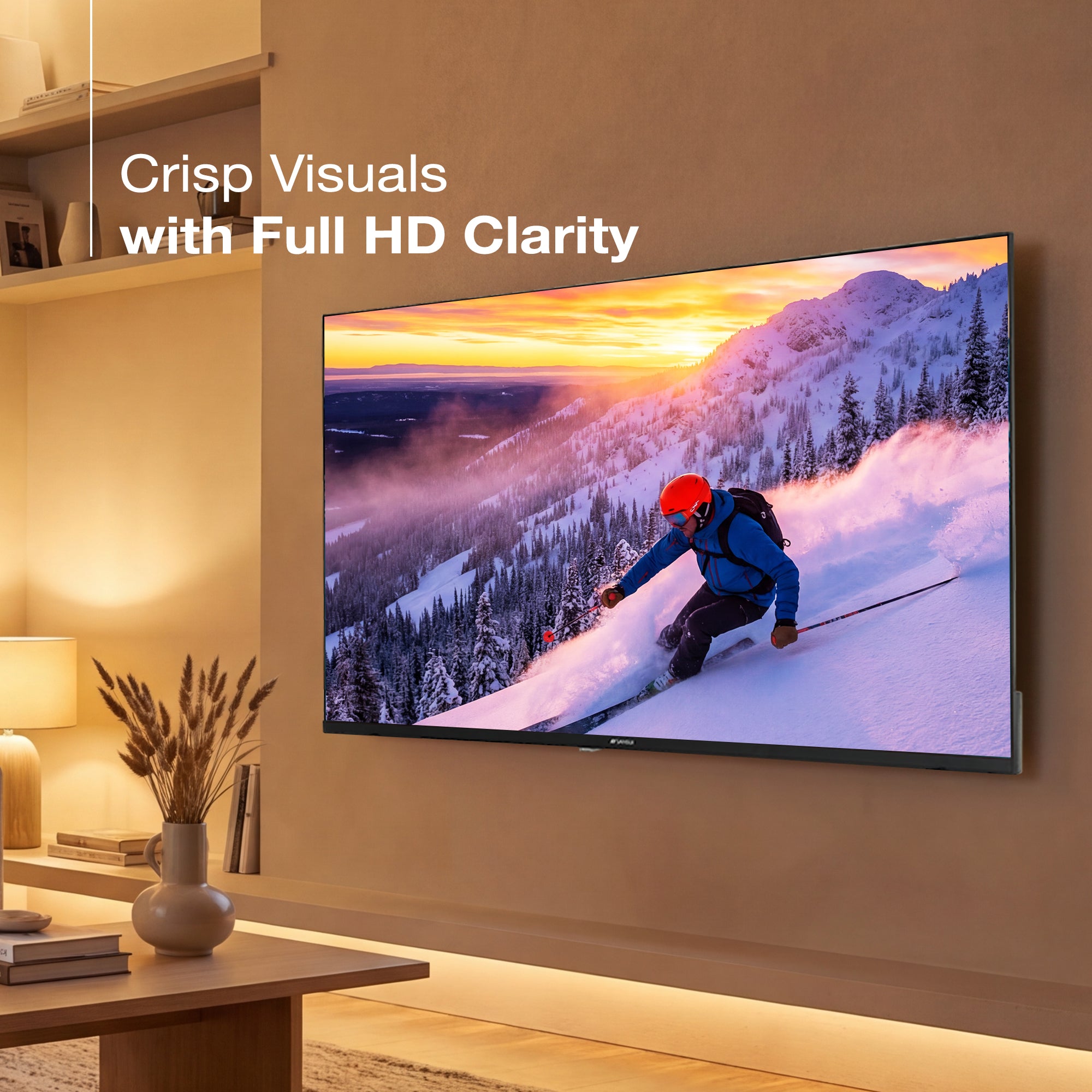
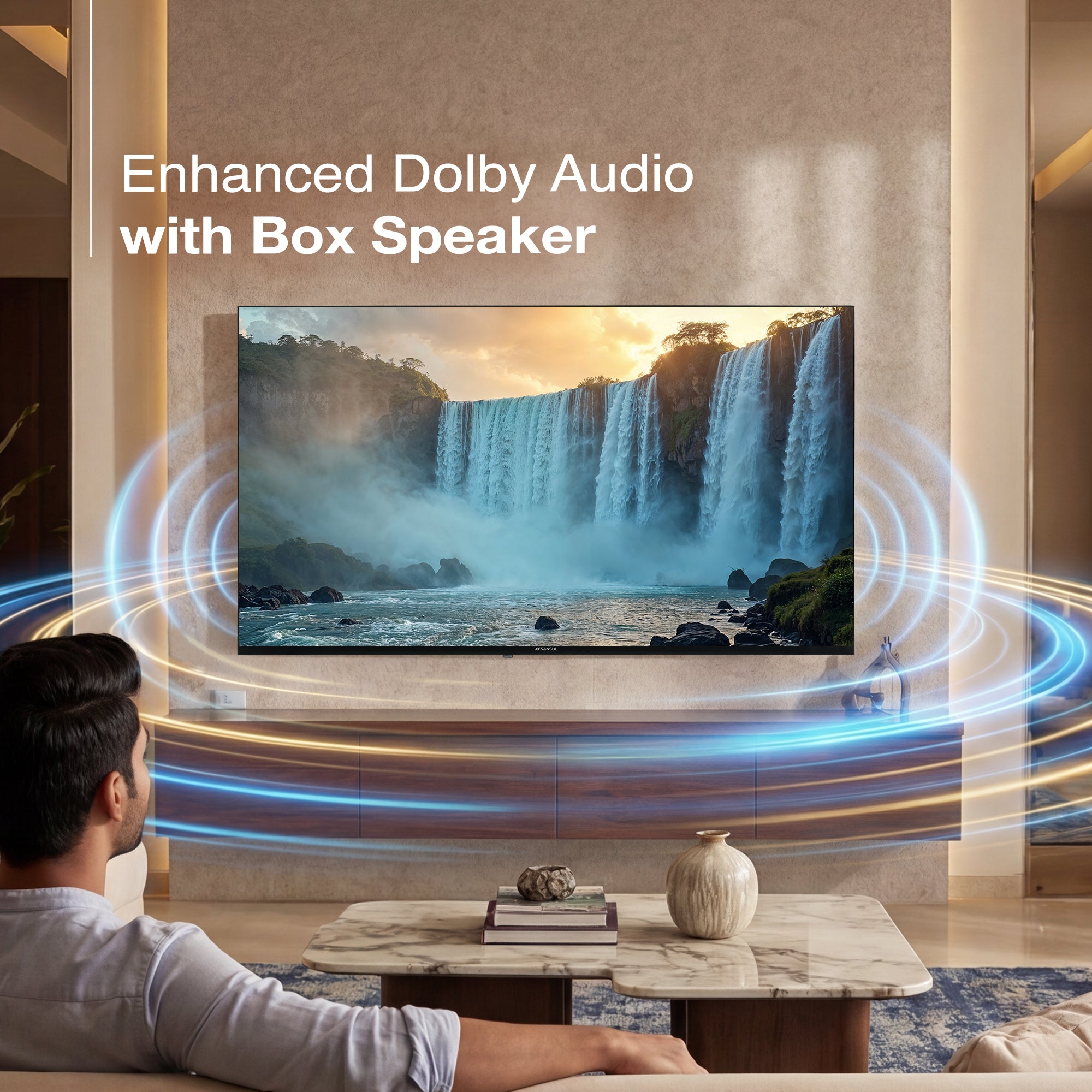
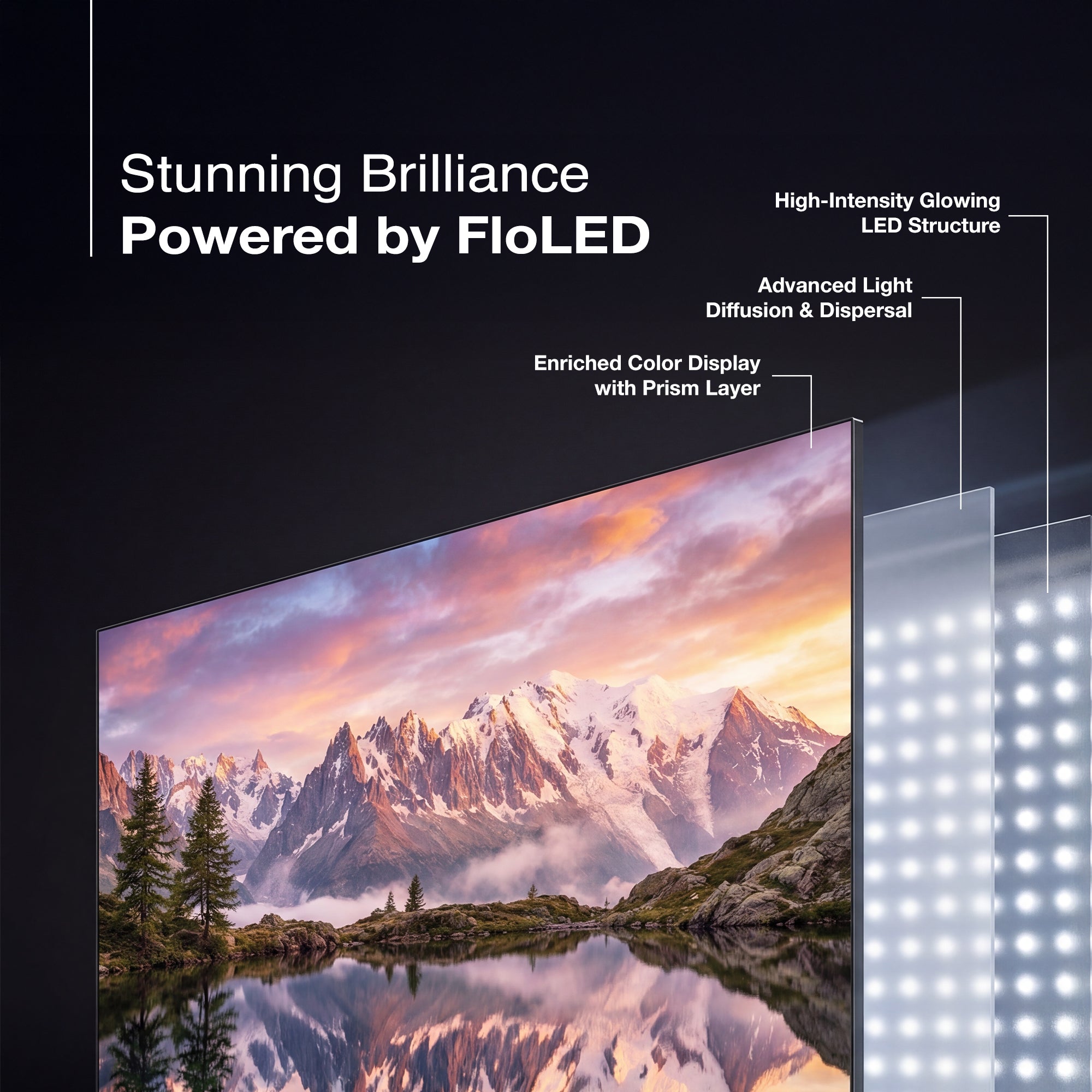
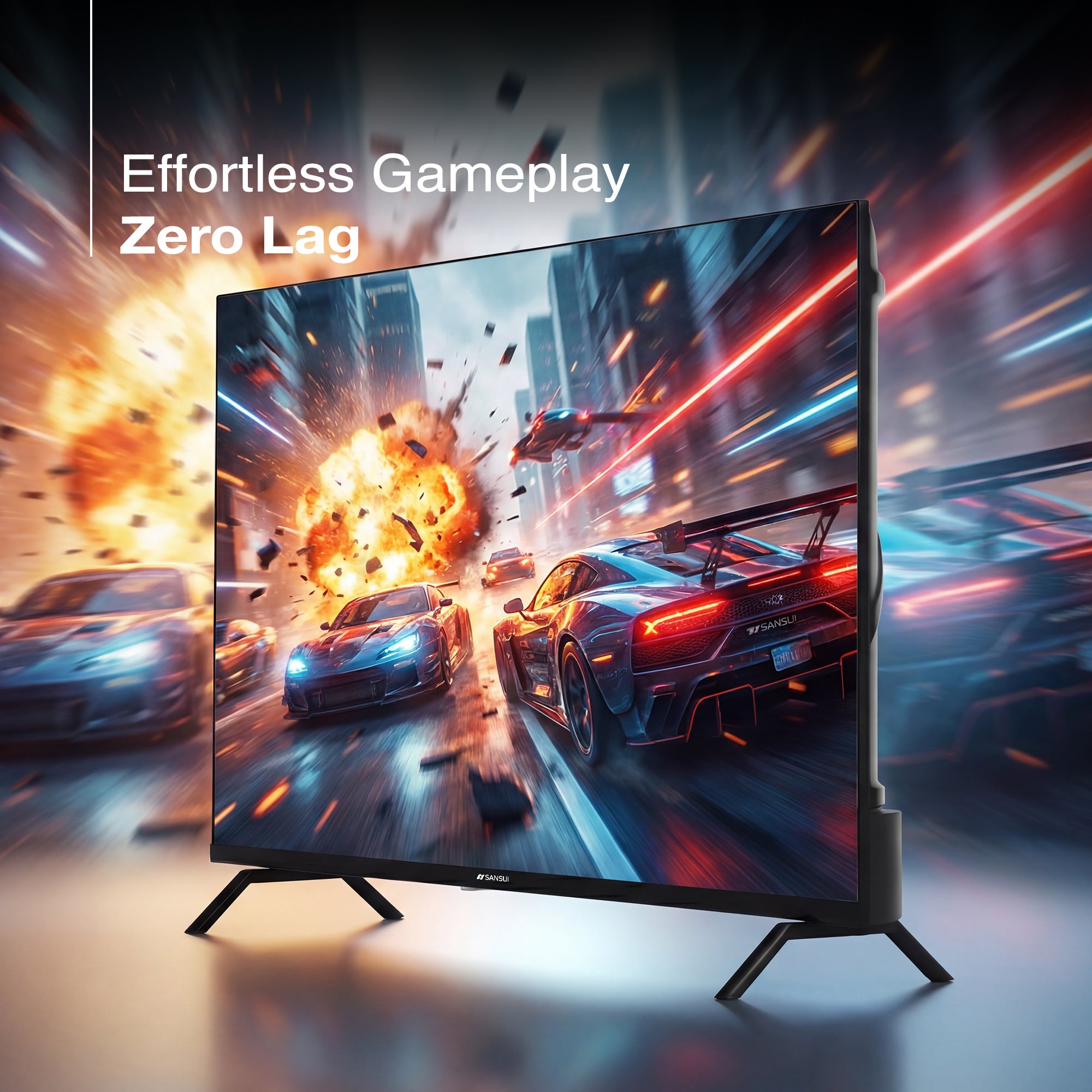
Experience stunning Full HD clarity with HDR10 for sharper contrast and vibrant colors. Enjoy powerful surround sound that pulls you right into the action. With 60Hz Refresh Rate, experience ultra-smooth, blur-free motion—perfect for sports, movies, and gaming. Powered by the advanced FloLED Display for brighter visuals and richer colors like never before.


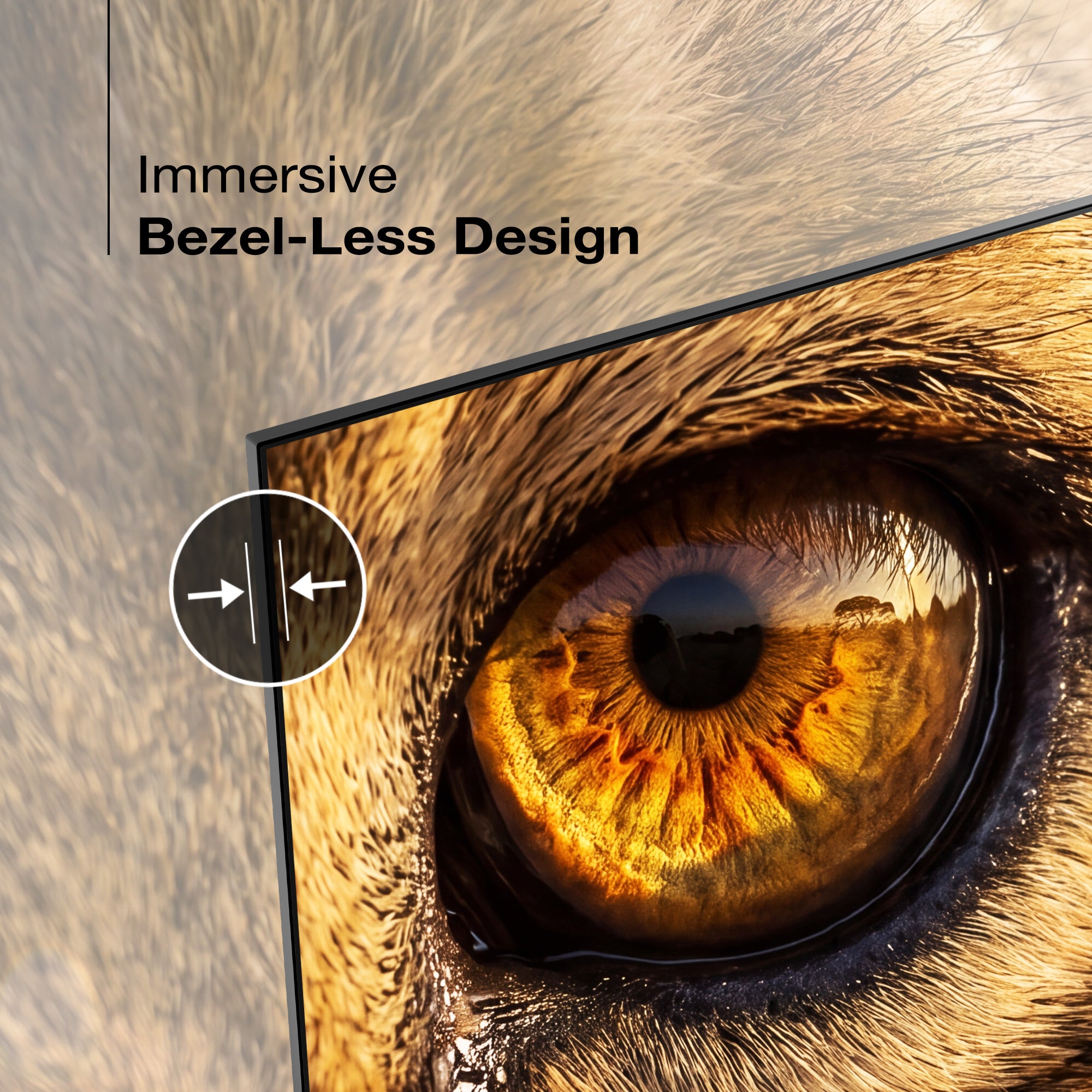
Limitless Viewing Experience
Designed to make a bold statement, the elegant bezel-less display creates a truly immersive viewing experience. Its refined aesthetics seamlessly enhance your home décor, transforming the TV into a captivating centerpiece.
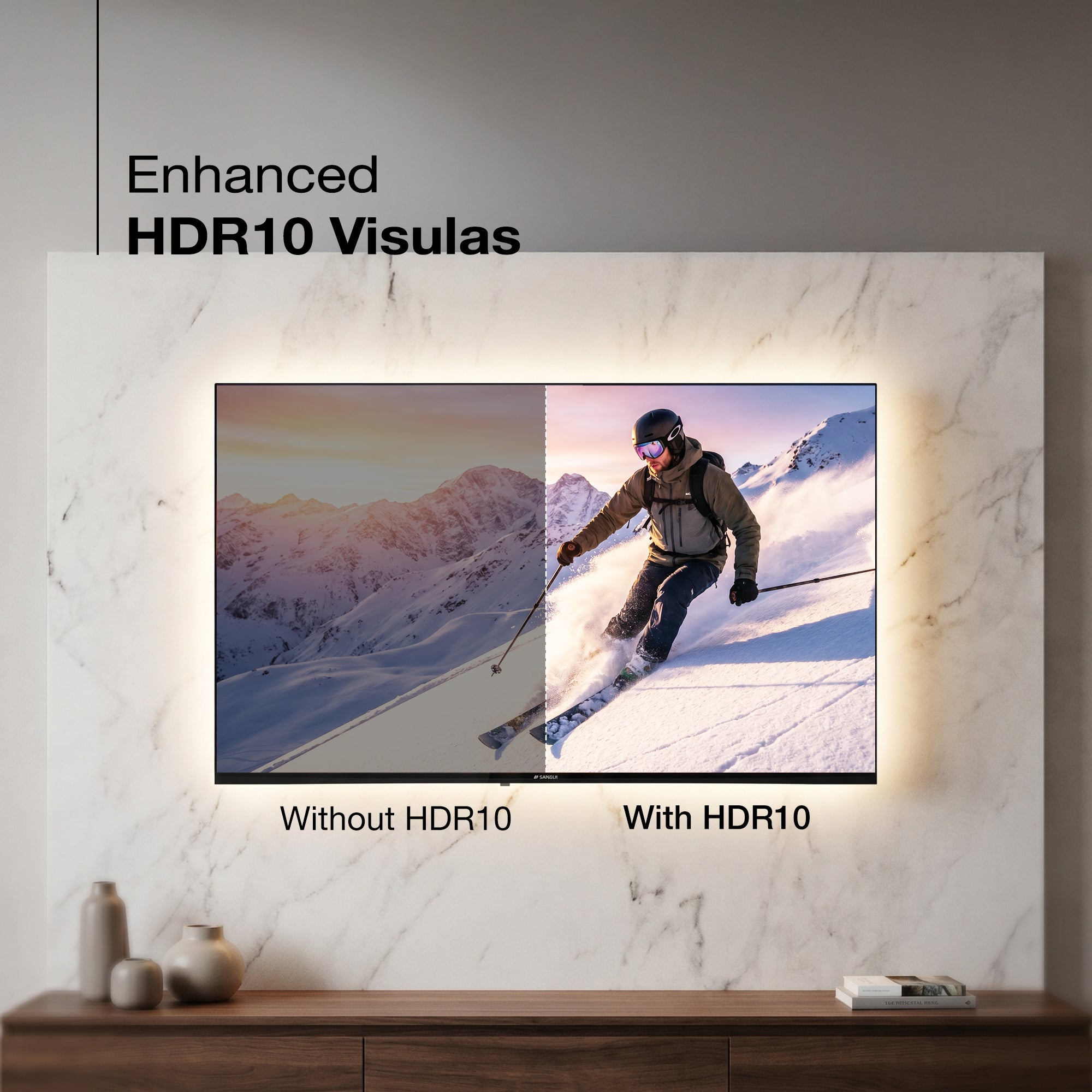
Stunning HDR10 Imagery
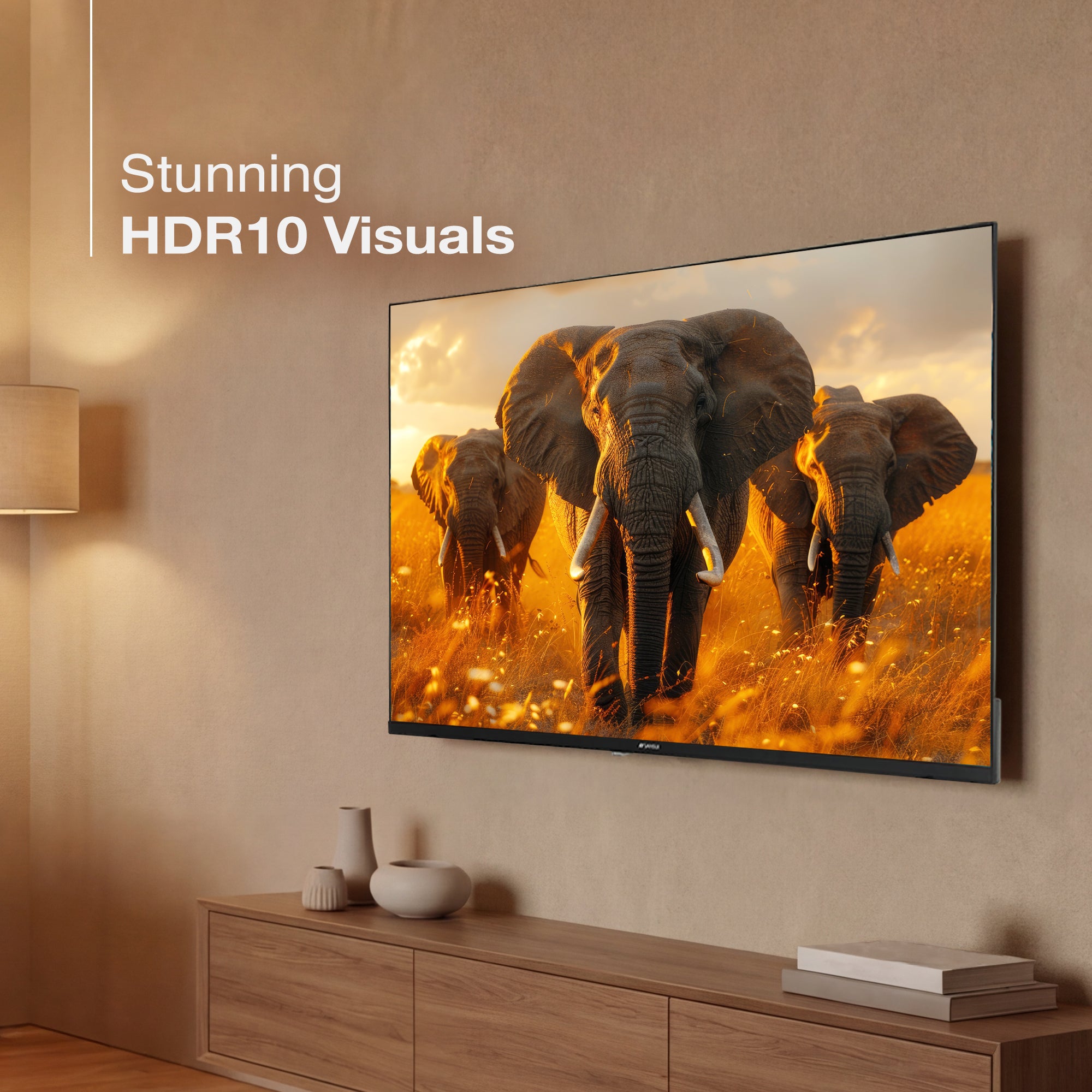
Step into a world of stunning visuals with advanced HDR10, delivering richer colors, deeper contrasts, and lifelike clarity across every scene.

Elevated Streaming Experience
Discover a world of seamless entertainment with Sansui Smart TV powered by Google TV—bringing all your favorite apps, games, and content together in one intuitive experience.

Wide-Angle Clarity
Experience stunning clarity from every angle with the Sansui Full HD TV. Designed for wide-angle viewing, it delivers consistent colors, sharp details, and brilliant contrast—so everyone enjoys the same immersive picture.

Unmatched Color Brilliance
Experience a new level of color precision with Dynamic Color Enhancer, intelligently refining every shade and detail. From subtle hues to bold tones, enjoy perfectly balanced, naturally vibrant visuals in every frame.
Product details
Please Note : Images shown in standard accessories are for reference only.
Operating System
Google TV
Display Brilliance
Superior Panel
Sonic Experience
Performance
Connectivity
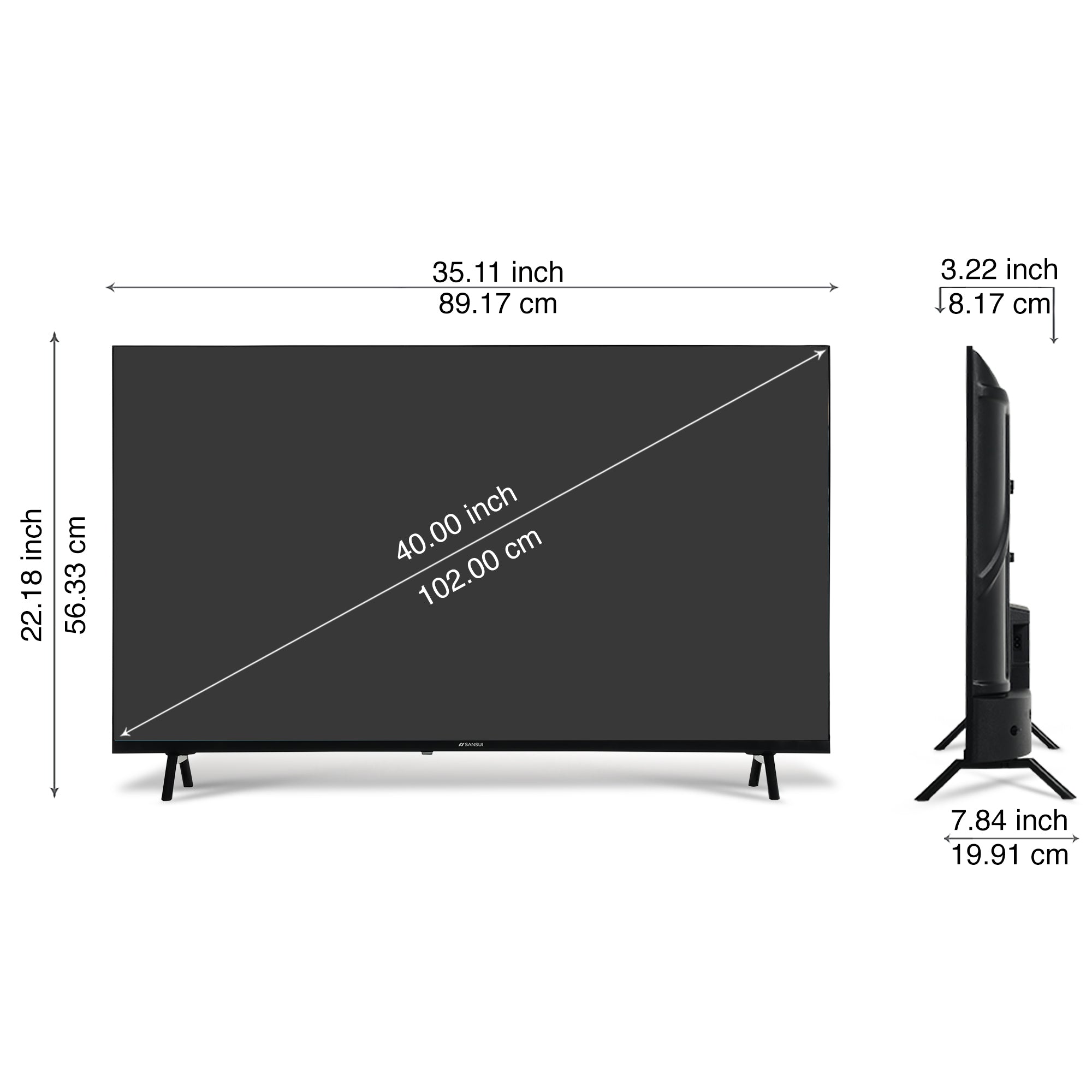
Dimensions
Warranty
Installation & Demo
Manufacturing, Packaging and Import Info
Standard Accessories

1 Piece TV

1 Piece User Manual with Warranty Card

1 Piece Remote Control

1 Pair Batteries

1 Set Base Stand

2 Pair Screws

1 Piece Power Cord
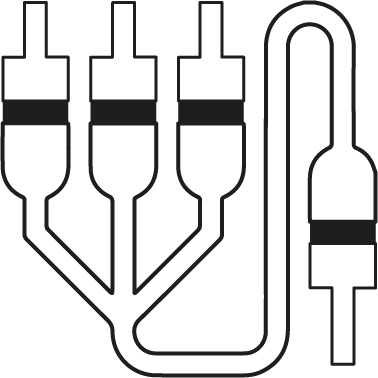
1 Piece Mini AV Cable

1 Piece Wall Mounting Set


FAQs
Please read our FAQs page to find out more.
How do I connect my Sansui TV to Wi-Fi?
To connect your Sansui TV to Wi-Fi, go to the Settings menu, select Network, then choose Wi-Fi. Find your network, enter the password, and connect.
Does Sansui TV support Google Assistant?
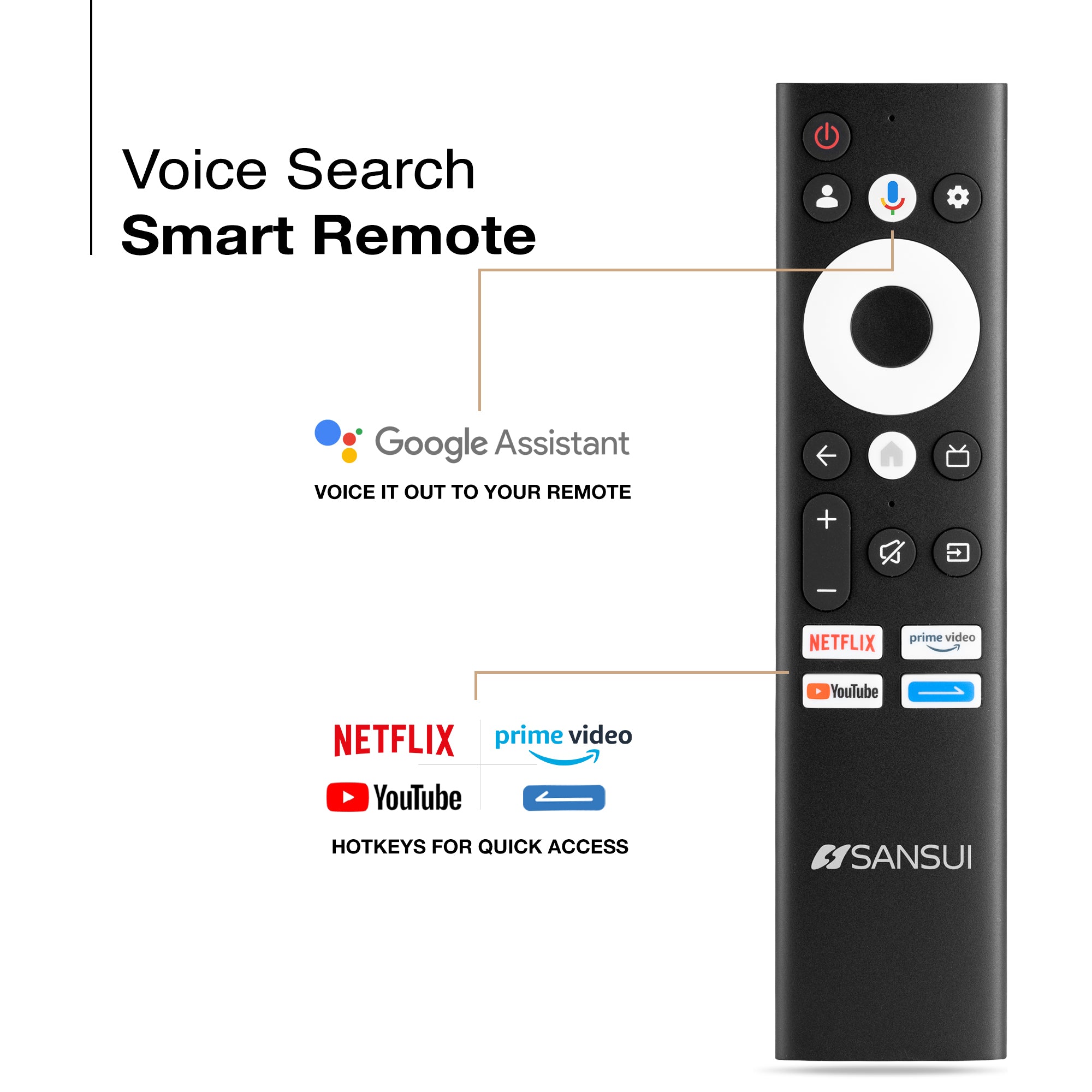
Yes, Sansui TVs support Google Assistant. You can use voice commands to search for content, control your TV, and access other smart home features.
How can I use the inbuilt Chromecast on my Sansui TV?
Ensure your phone/tablet and TV are connected to the same Wi-Fi network. Open a Chromecast-supported app, tap the Cast button, and select your Sansui TV.
What types of connectivity options are available on Sansui TVs?
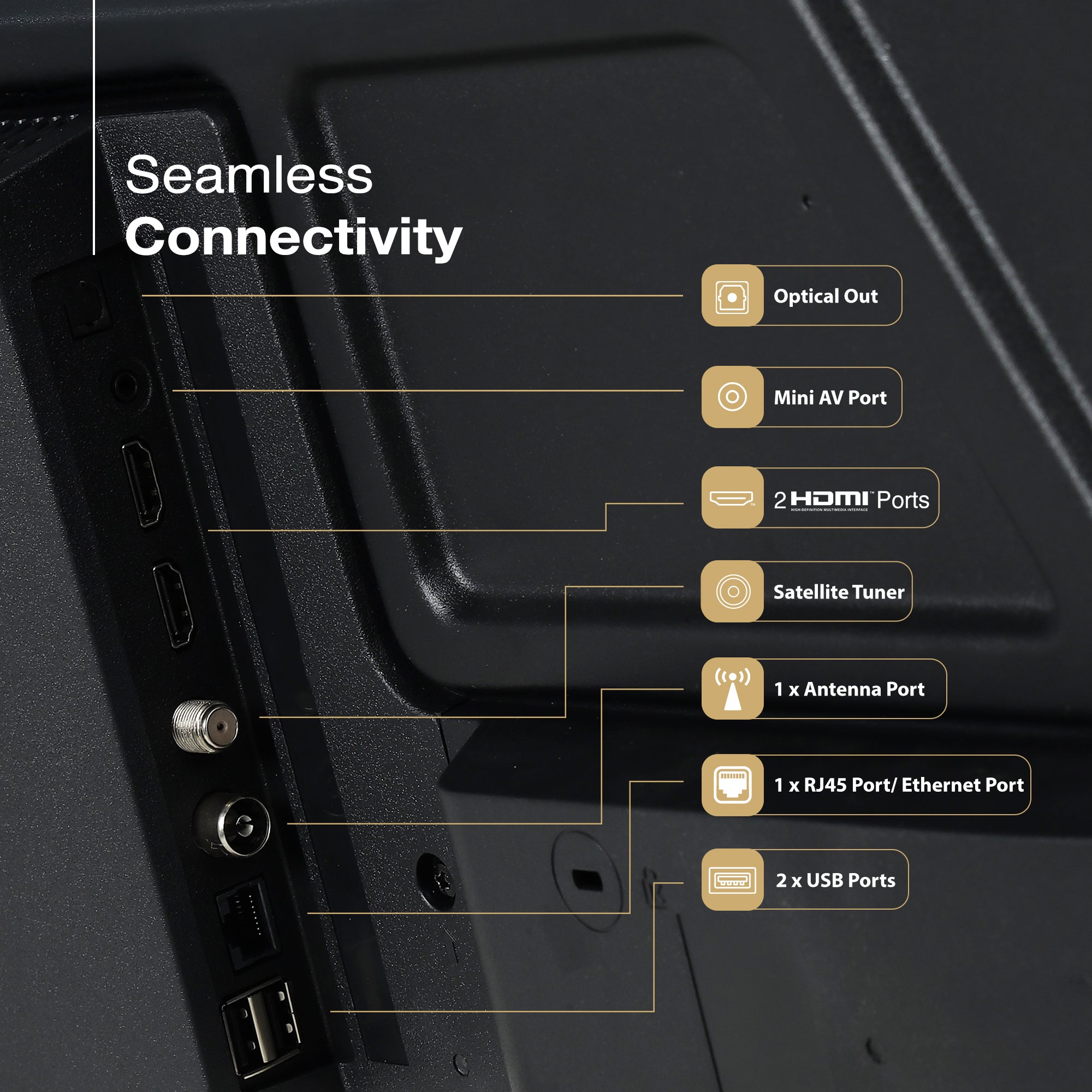
Sansui TVs offer various connectivity options, including HDMI dual connectors, Bluetooth, Wi-Fi, and twin USB ports.
How to Screencast for Google TV?
First, connect both your TV and mobile device to the same Wi-Fi network. If you haven’t already, download and install the Google Home app on your mobile. Make sure your mail ID is configured on the TV. Open the Google Home app on your mobile, and at the bottom, tap the second option tab “Devices”. You will see your TV brand name listed—tap on it to start casting your mobile screen to the TV.
How do I connect an LED TV to a set-top box?
You can connect your LED TV to the set-top box using one of the following options: AV cables or HDMI cable. In TV source option, select input device AV Input/Composite Input or HDMI.
How to Stop Ads in LED?
Go to Settings, then select “Device preference/System/Advance setting” then turn off shop mode/E-Pop up.
What should I do if my LED TV displays a “no signal” message?
Check your input source, ensure cables are connected properly, and verify that the external device (like a setup box) is powered on.
What if TV is unable to connect with Wi-Fi, showing “No Internet/Limited Connection?
Go to settings and update the current date/time or use network provided date & time option.
How do I update the software on my Sansui TV?
Go to the Settings menu, select About, and then choose Software Update. Follow the on-screen instructions to check for and install updates.
How to turn off Sleep mode?
Go to TV setting, select the system option, Click the time option, On/Off.