



Sansui 140 cm (55) 4K Ultra HD Smart Google TV with HDR10, Dolby Audio, Surround Sound, HSR 120 Hz Refresh Rate, MEMC and FloLED Panel (JSW55UG23)
Save 37% -
Sale priceRs. 42,490.00Regular price
Rs. 67,990.00
Product Highlights
- Model Name: JSW55UG23
- Display: HLG Display | HDR10 | MEMC | Eye care/Protect
- Resolution: 4K Ultra HD TV 3840*2160 Pixels
- Refresh Rate: HSR120Hz
- Sound Output: 2X15W Box Speaker | Dolby Audio | Surround Sound
- Operating System: Google TV (5.0) | OS Ver. Android 14.0
- Processor: A55 Quad core, 1.5GHz | RAM 2GB | ROM 32GB
- Wi-Fi 2.4G/5G | Bluetooth 5.1
-
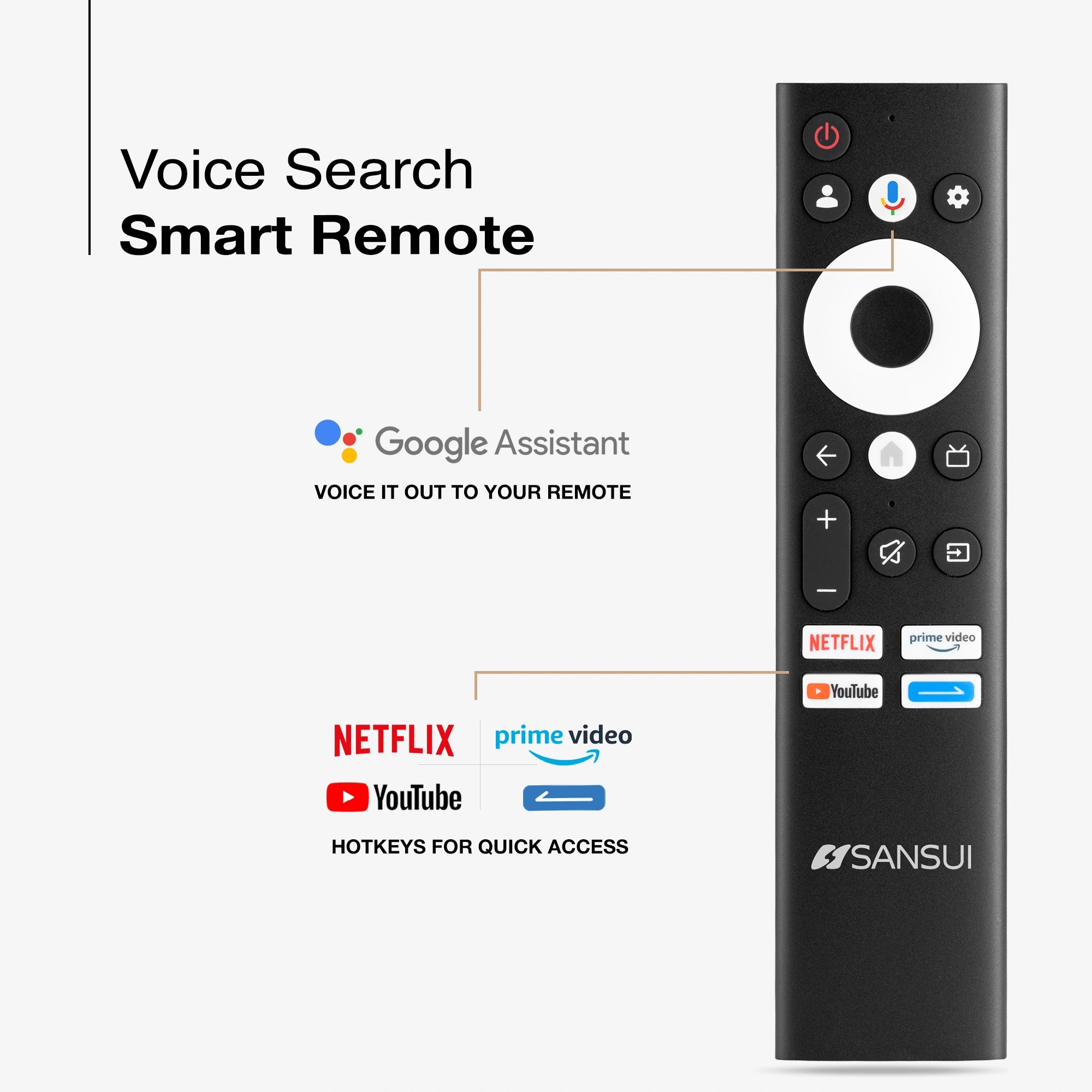
Supported Apps: Google Play Store | Netflix | YouTube | Amazon Prime Video | Google Assistant | Google Cast
-
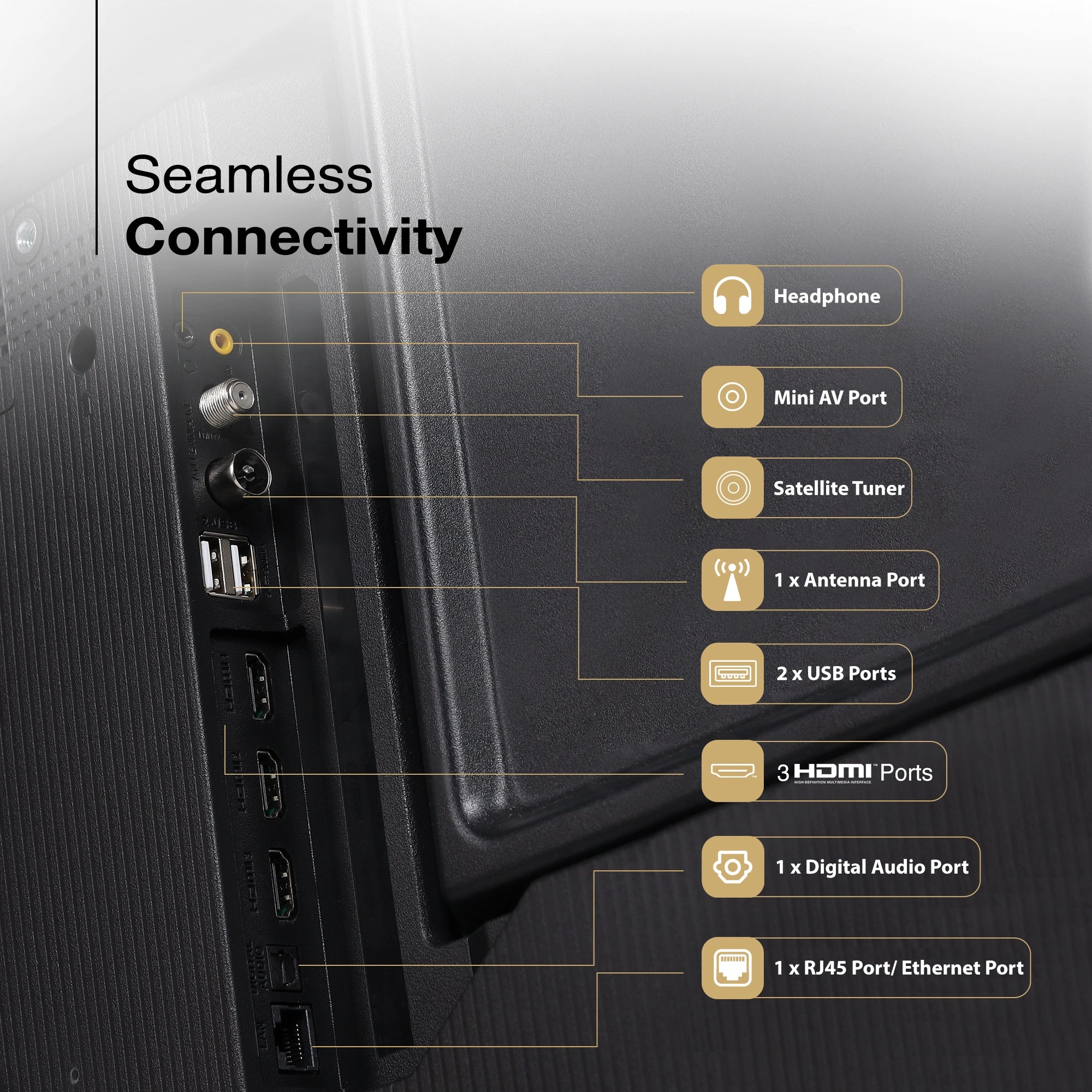
Ports: 3HDMI | 2USB | Optical Out | mini AV | Headphone | LAN | RF | Satellite tuner
Find Nearby Stores
Shop now

Spotlight
Experience stunning 4K Ultra HD clarity and lifelike color on the Sansui 140cm (55) Google TV. HDR10/HLG enhance brightness and contrast, while the bezel-less design delivers an immersive, premium look. Enjoy rich, room-filling sound with 30W speakers and Dolby Audio.
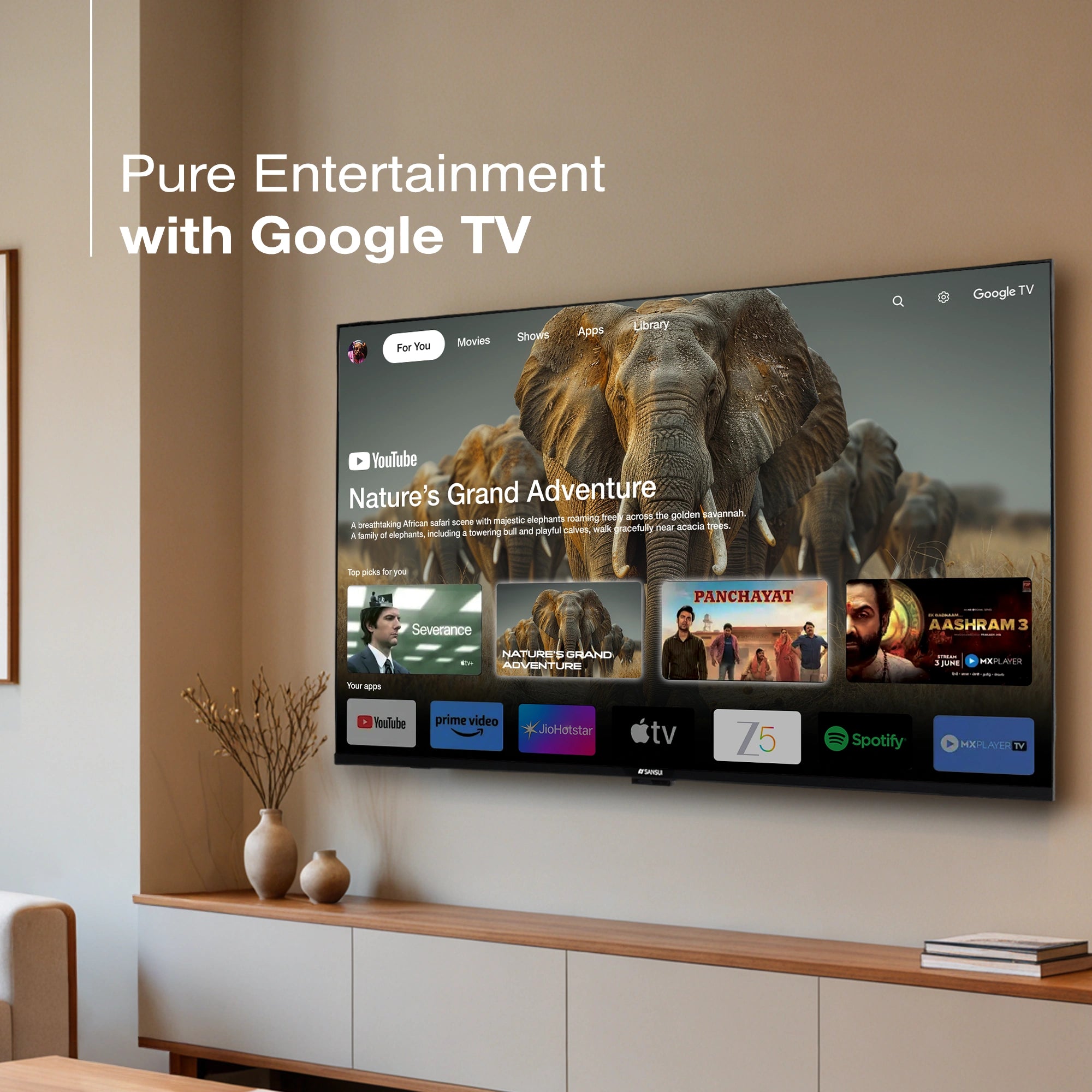
Powered by Android 14, Google TV offers seamless navigation, personalised recommendations, and all your favourite apps. With built-in Chromecast, streaming from your phone is fast and effortless.

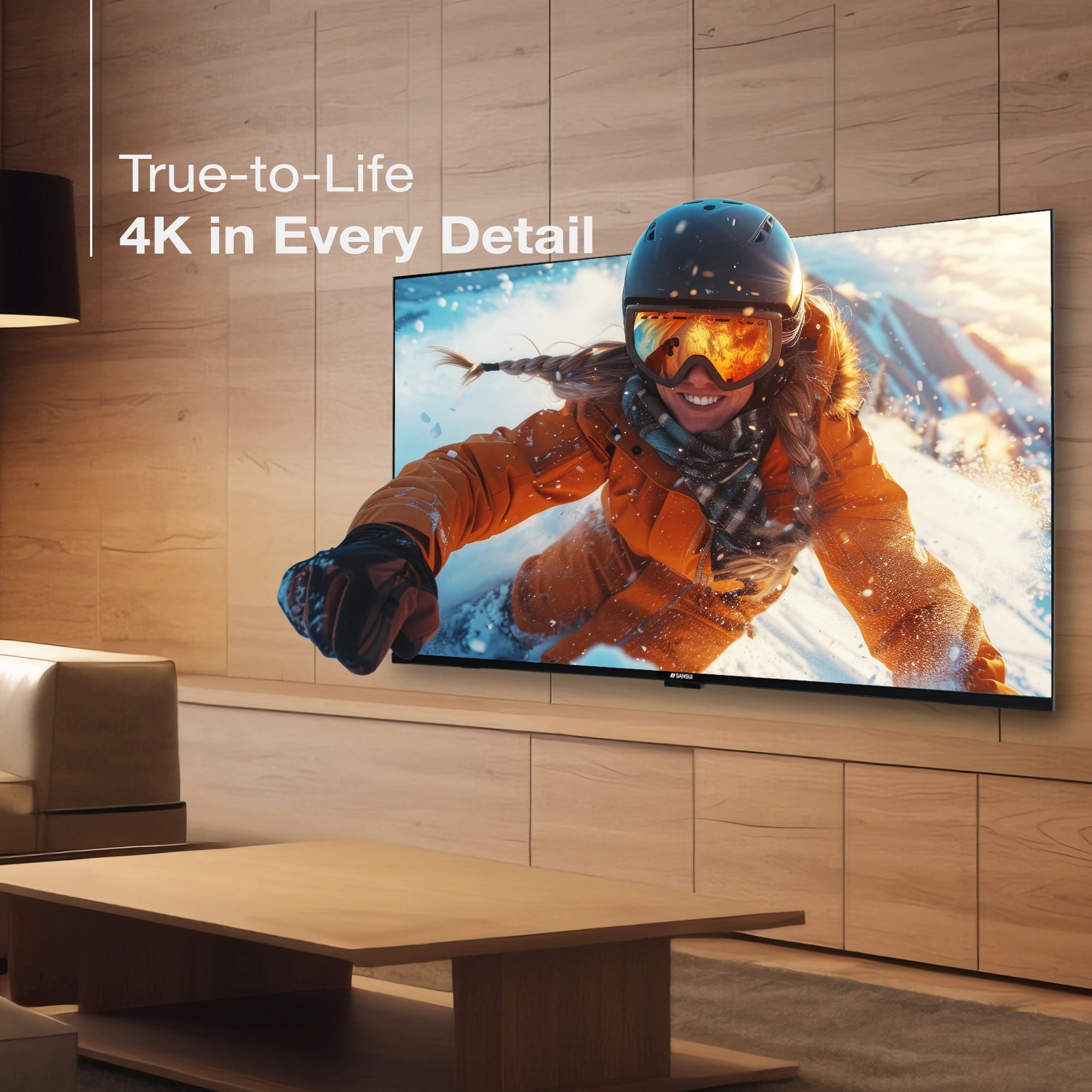
Stunning 4K Clarity
Experience breathtaking 4K Ultra HD clarity with lifelike details, vibrant colors, and exceptional sharpness—delivering a viewing experience that feels truly immersive and incredibly real.

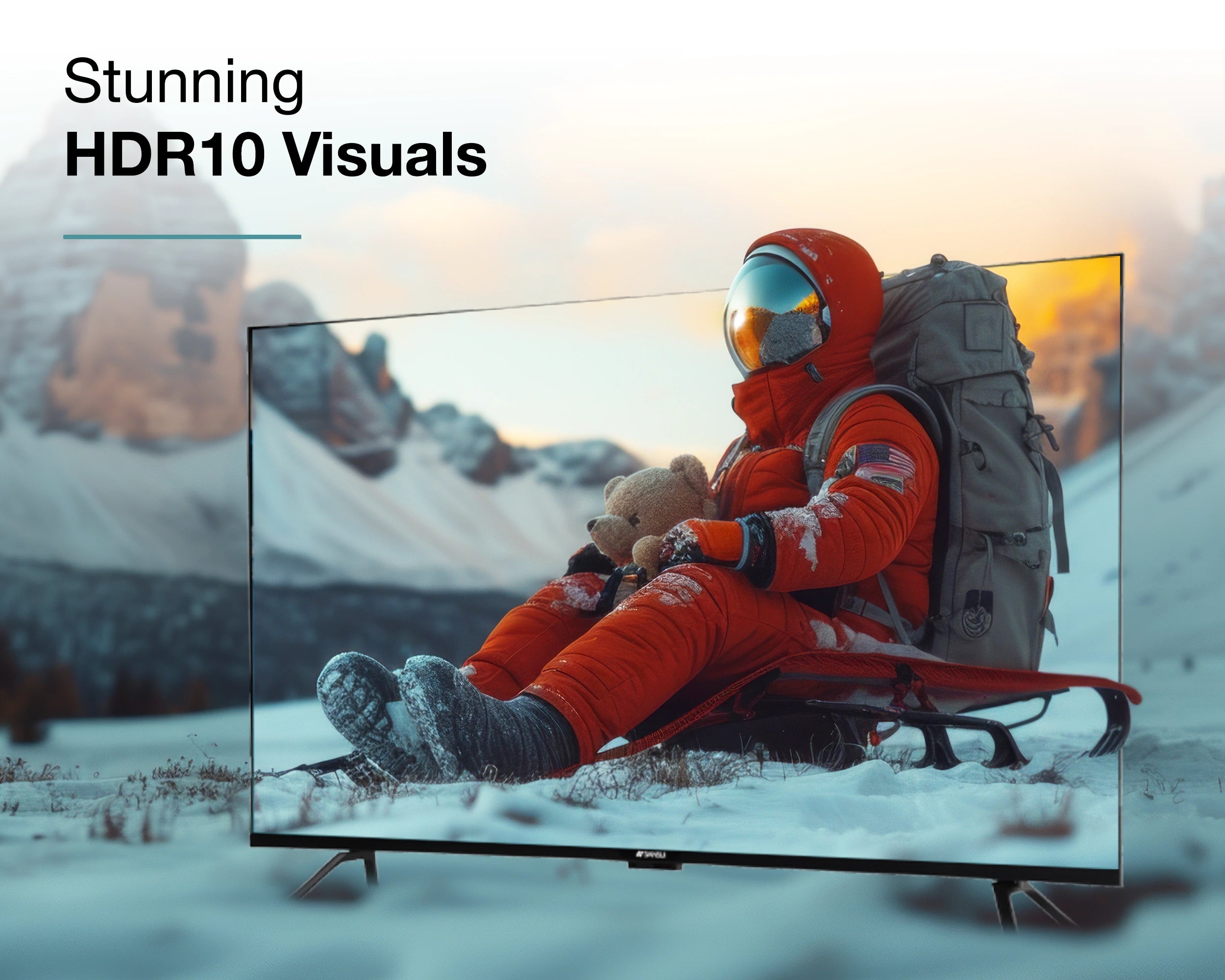
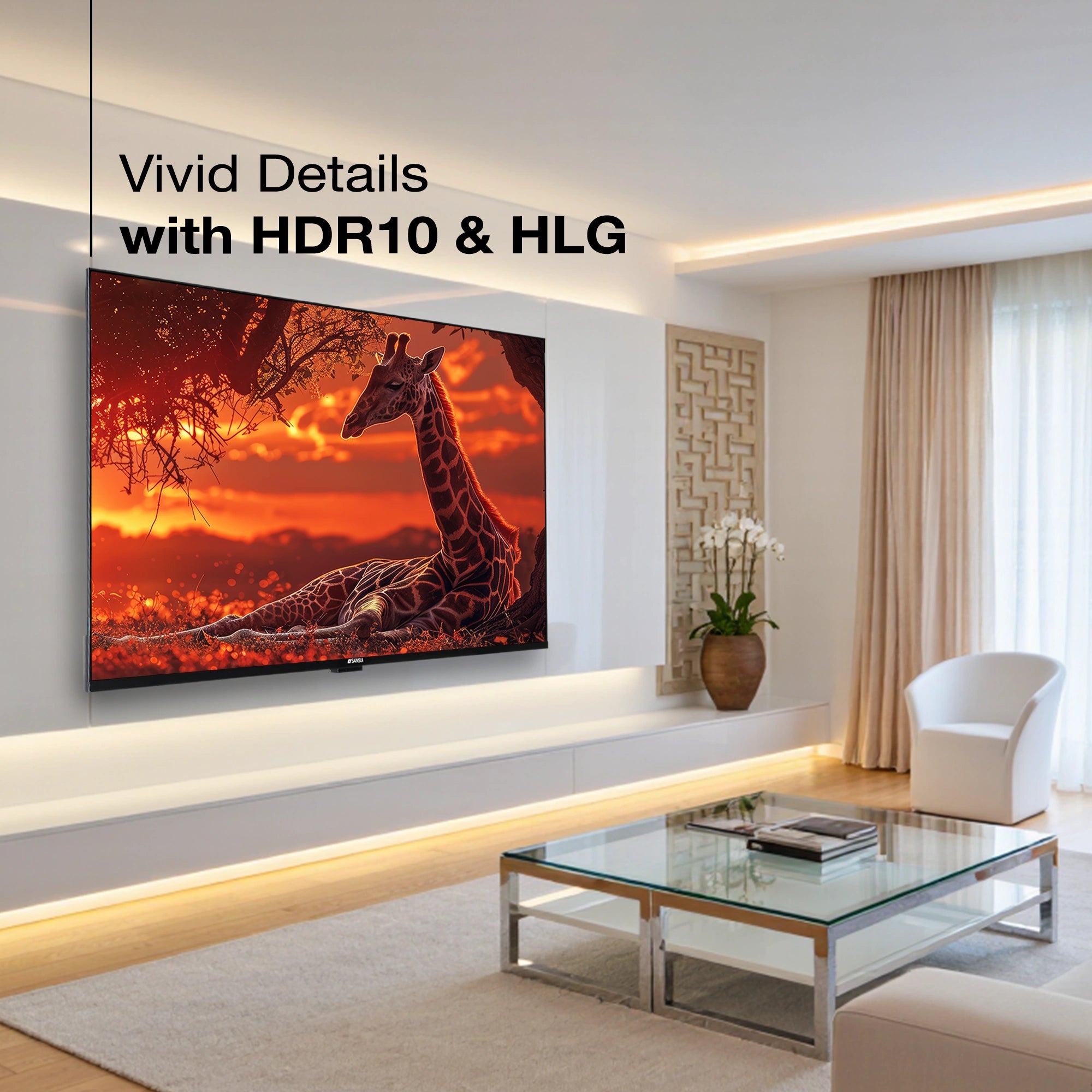
Ultra Clear HDR10 Imagery
HDR10 brings out incredible detail with brighter highlights, balanced contrast, and more natural color depth. Every scene feels sharper and more realistic—exactly the way it’s meant to be seen.

Bezel-Less Elegance
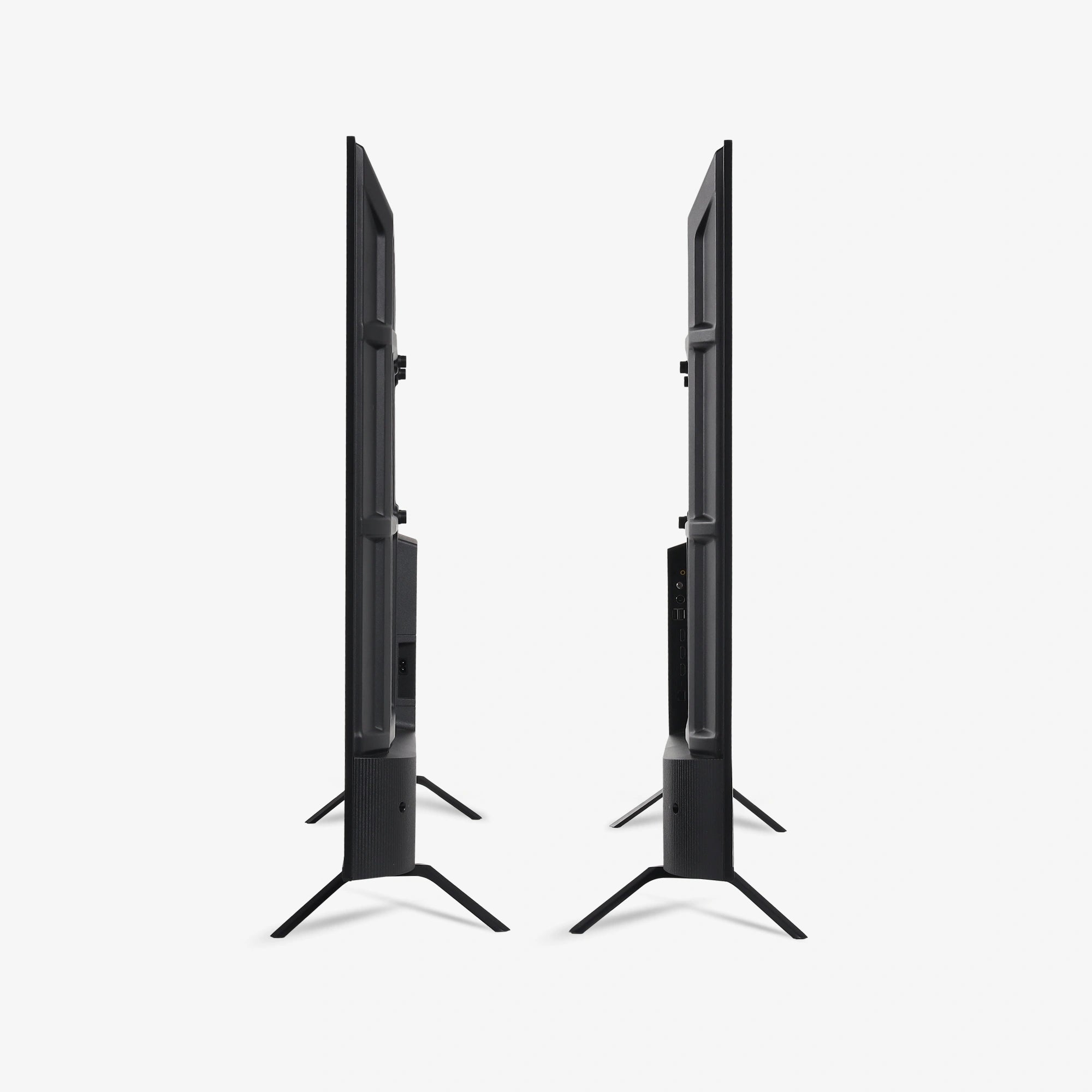
The ultra-slim, bezel-less design delivers a clean, modern aesthetic that maximizes screen space and elevates your viewing experience with a truly borderless look.
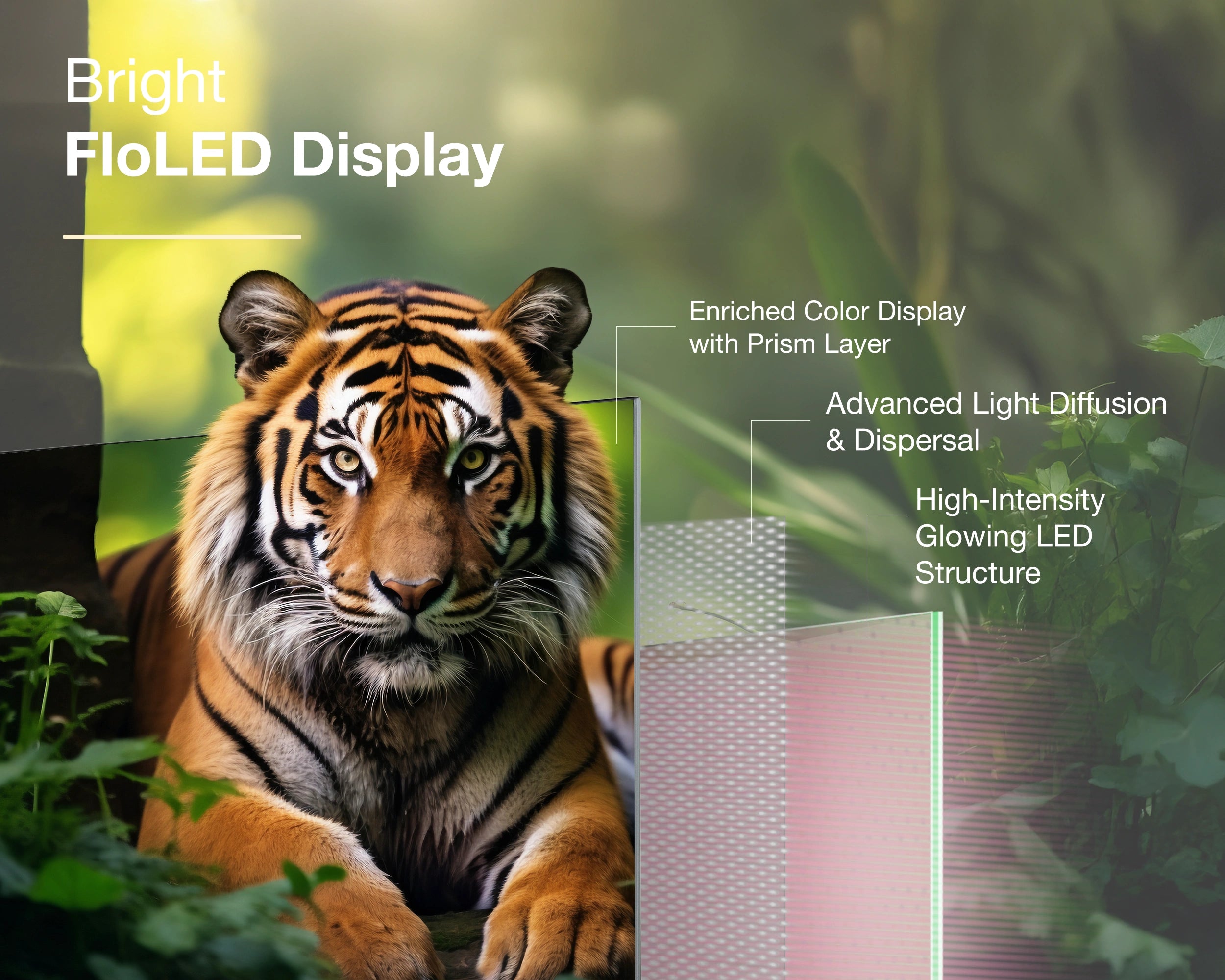
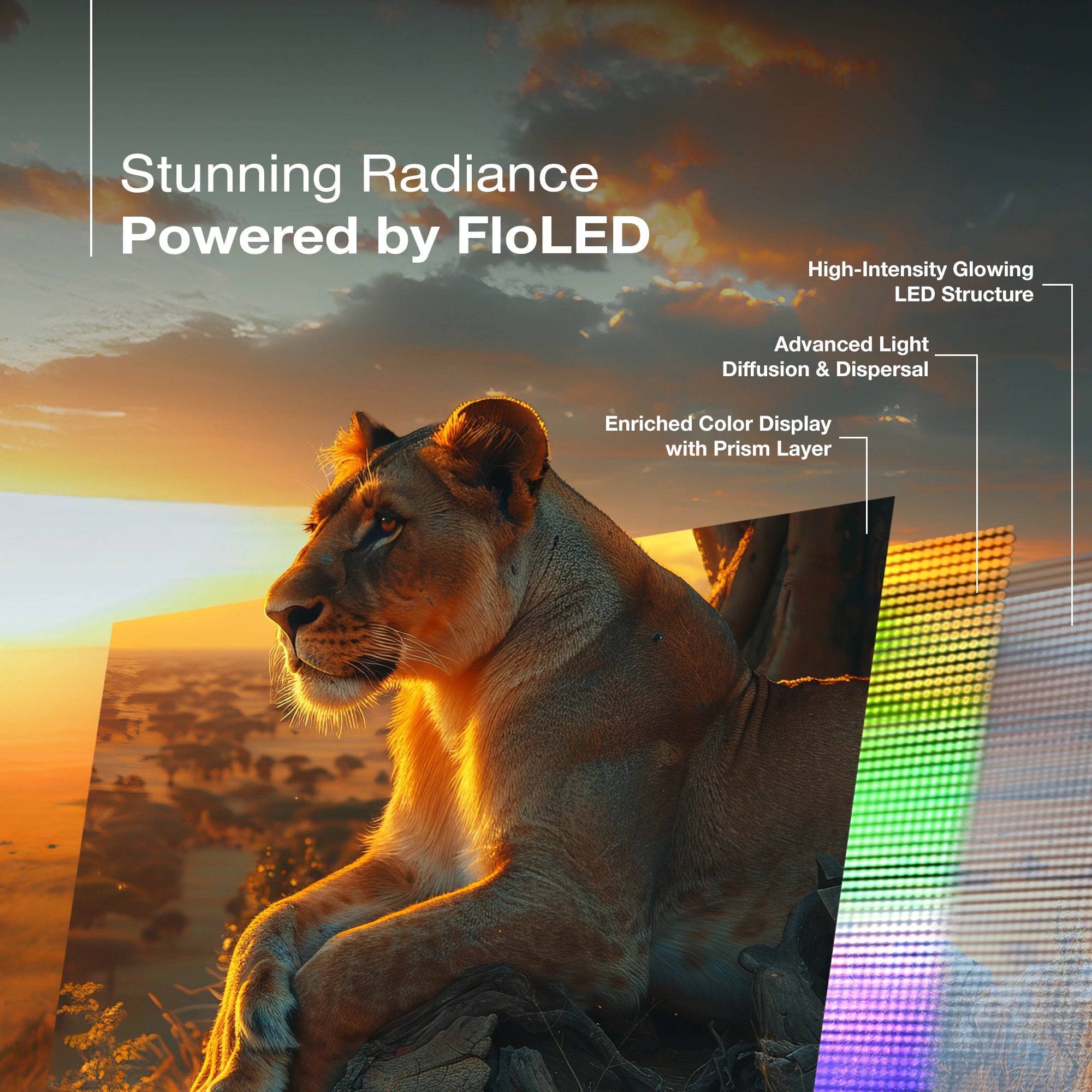
4K Precision with FloLED
FloLED brings a new level of clarity with its advanced light-diffusion design. The high-intensity LED structure, paired with a precision prism layer, spreads light evenly across the screen—cutting out dull patches and boosting color richness. From bright highlights to deep shadows, every frame looks crisp, vibrant, and amazingly lifelike.
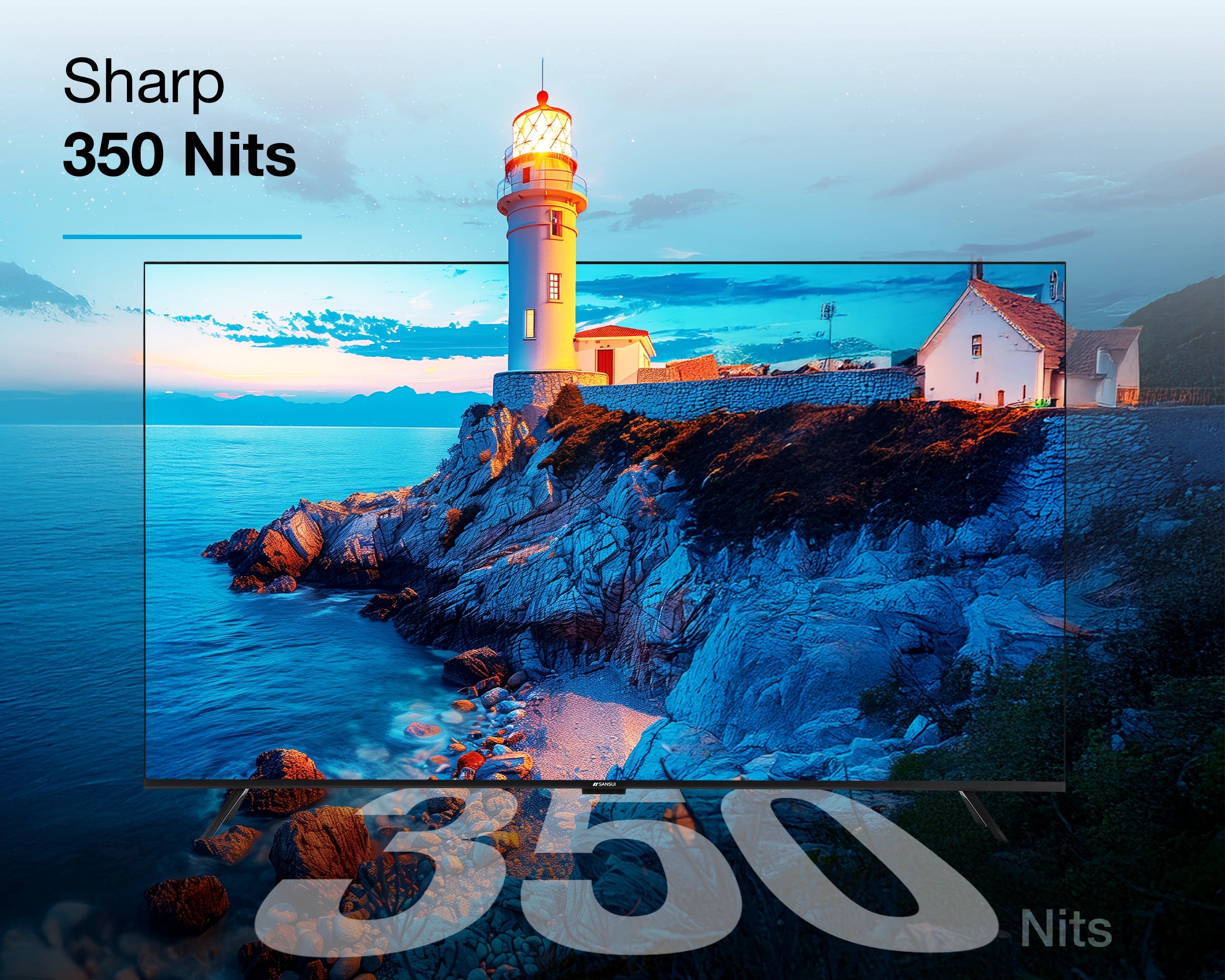
Enhanced Screen Brightness
Enjoy vivid clarity and sharp brightness with 350 nits, delivering clear, vibrant visuals even in bright rooms for an exceptional viewing experience.

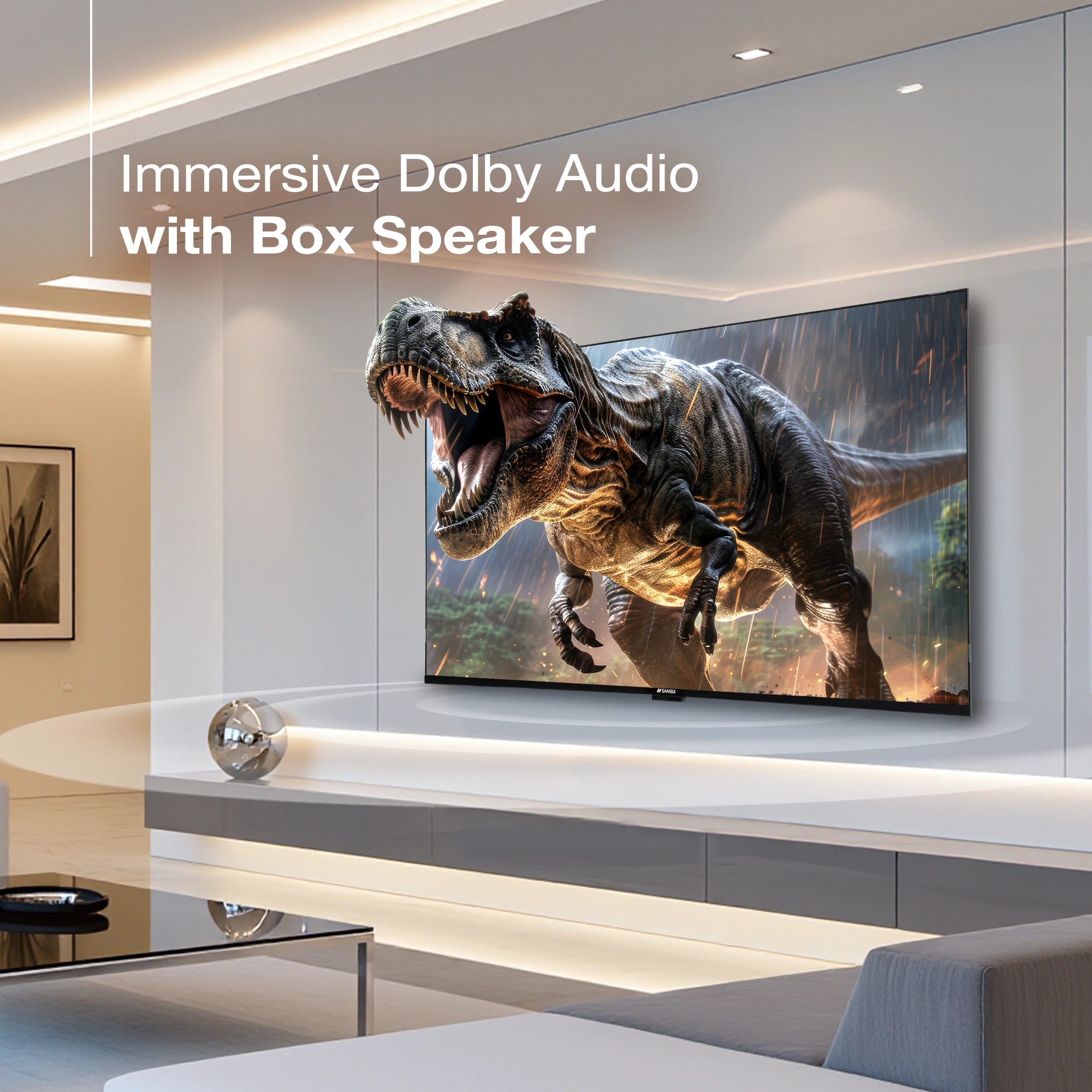
30W Cinematic Sound
Experience room-filling sound with powerful 30W box speakers tuned with Dolby Audio. From crisp dialogue to deep, impactful bass, your movies and shows gain rich clarity and immersive surround sound—bringing every moment to life right in your living room.
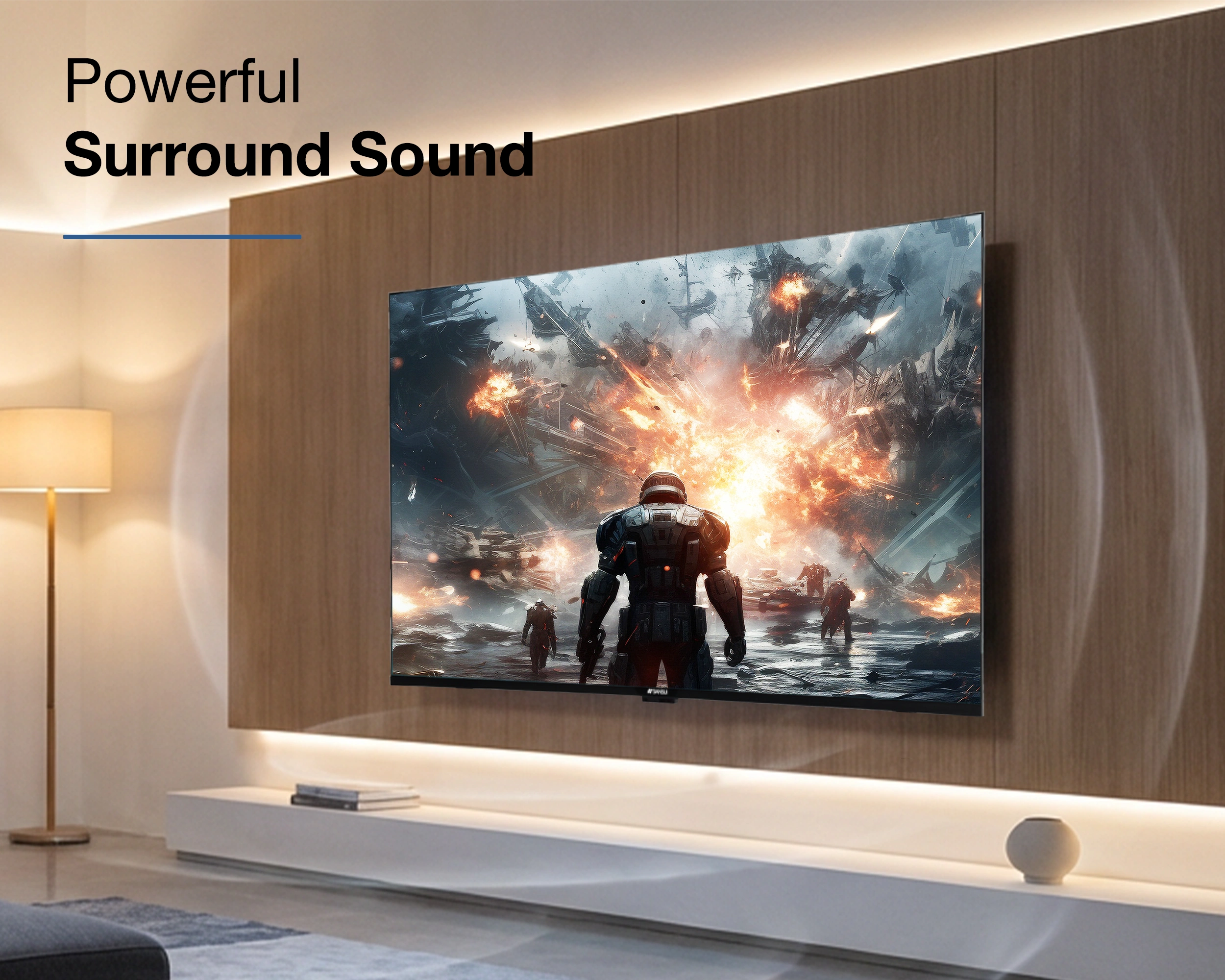
Immersive Surround Sound
Surround Sound delivers rich, room-filling audio with remarkable depth, creating an immersive soundstage that enhances every moment.
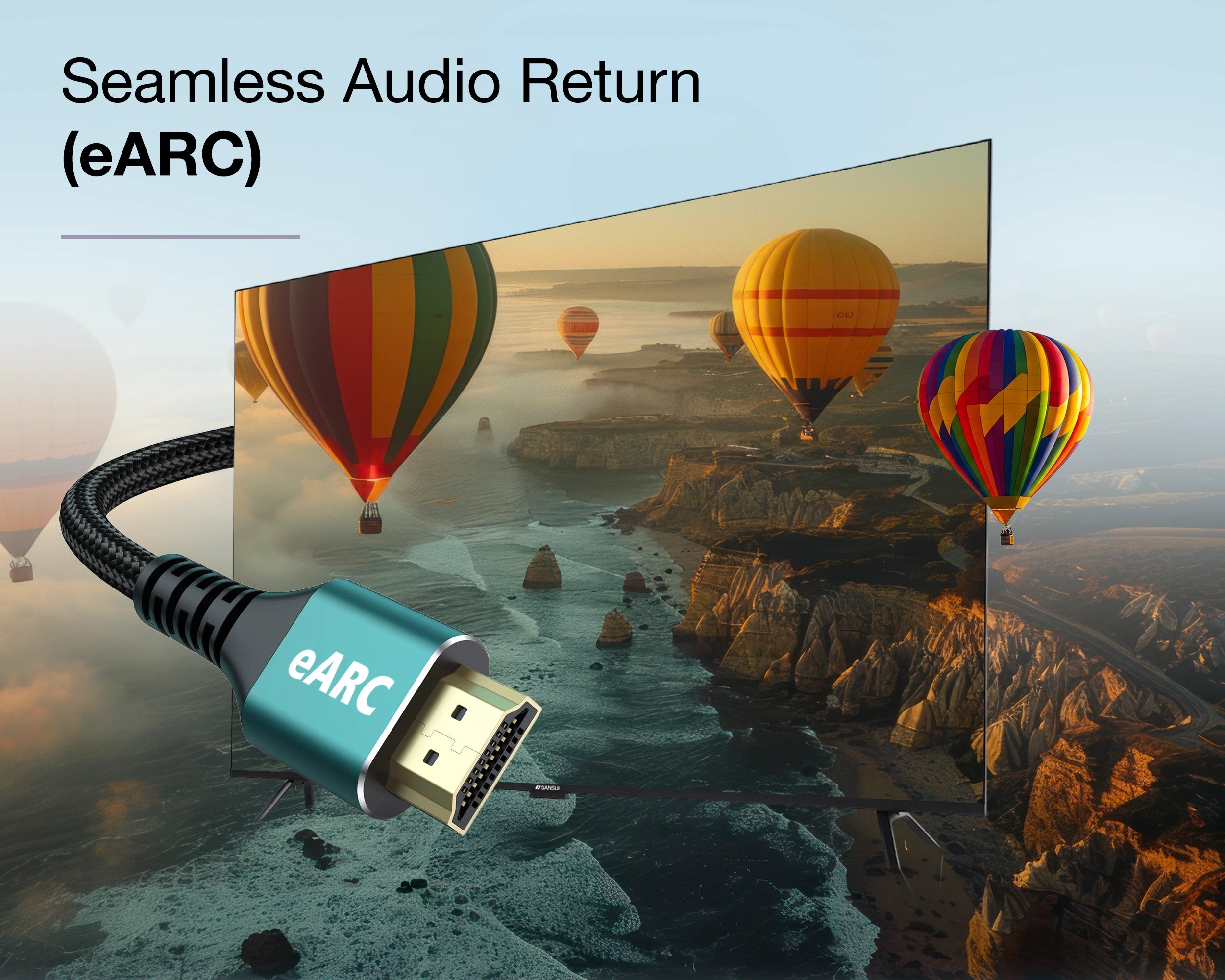
eARC for Advanced Audio
Sansui TVs with eARC deliver bold, high-fidelity sound by transmitting Dolby Audio with accuracy. It enhances movies, shows, and gaming with immersive, uninterrupted audio—making every detail feel vivid and engaging.
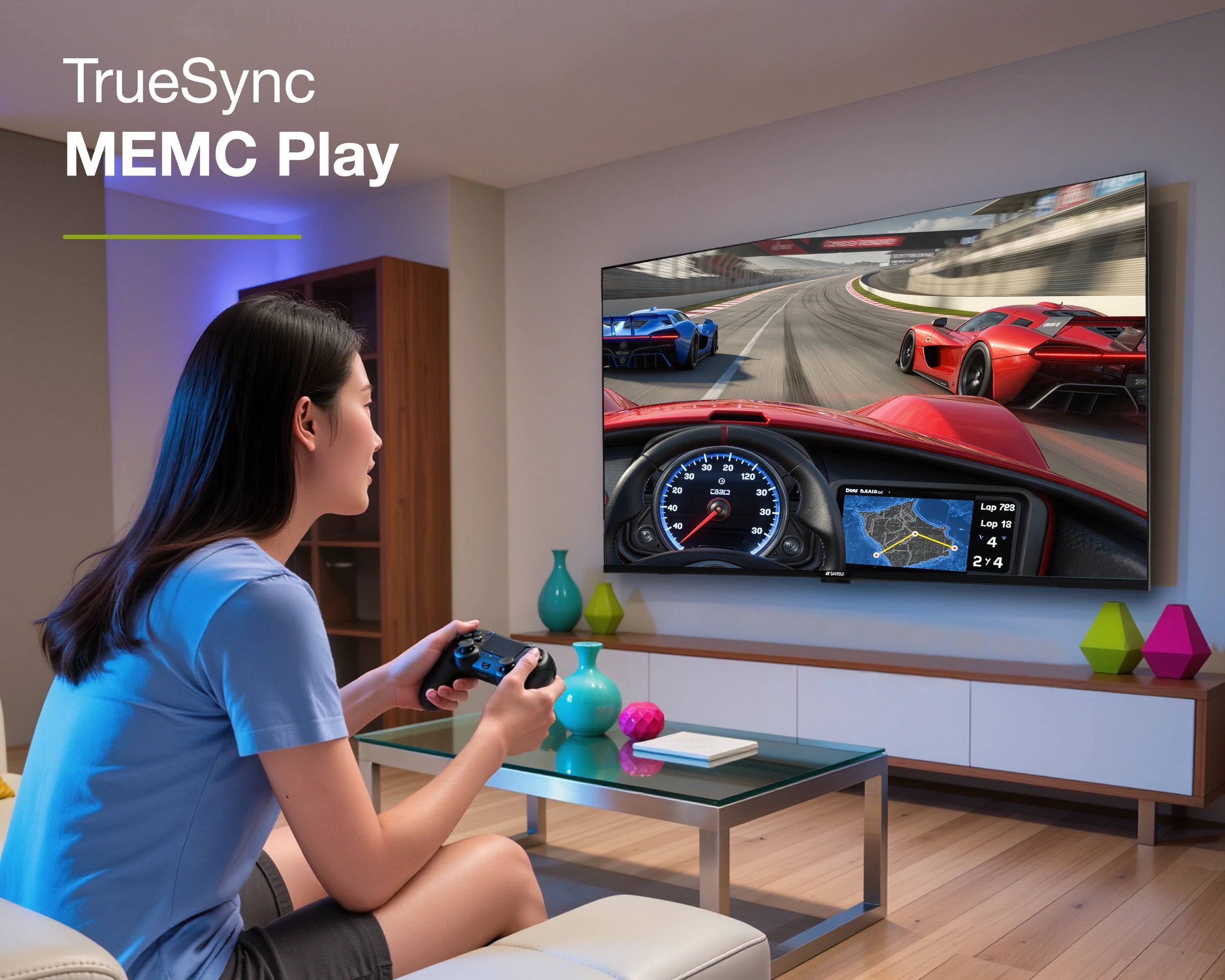
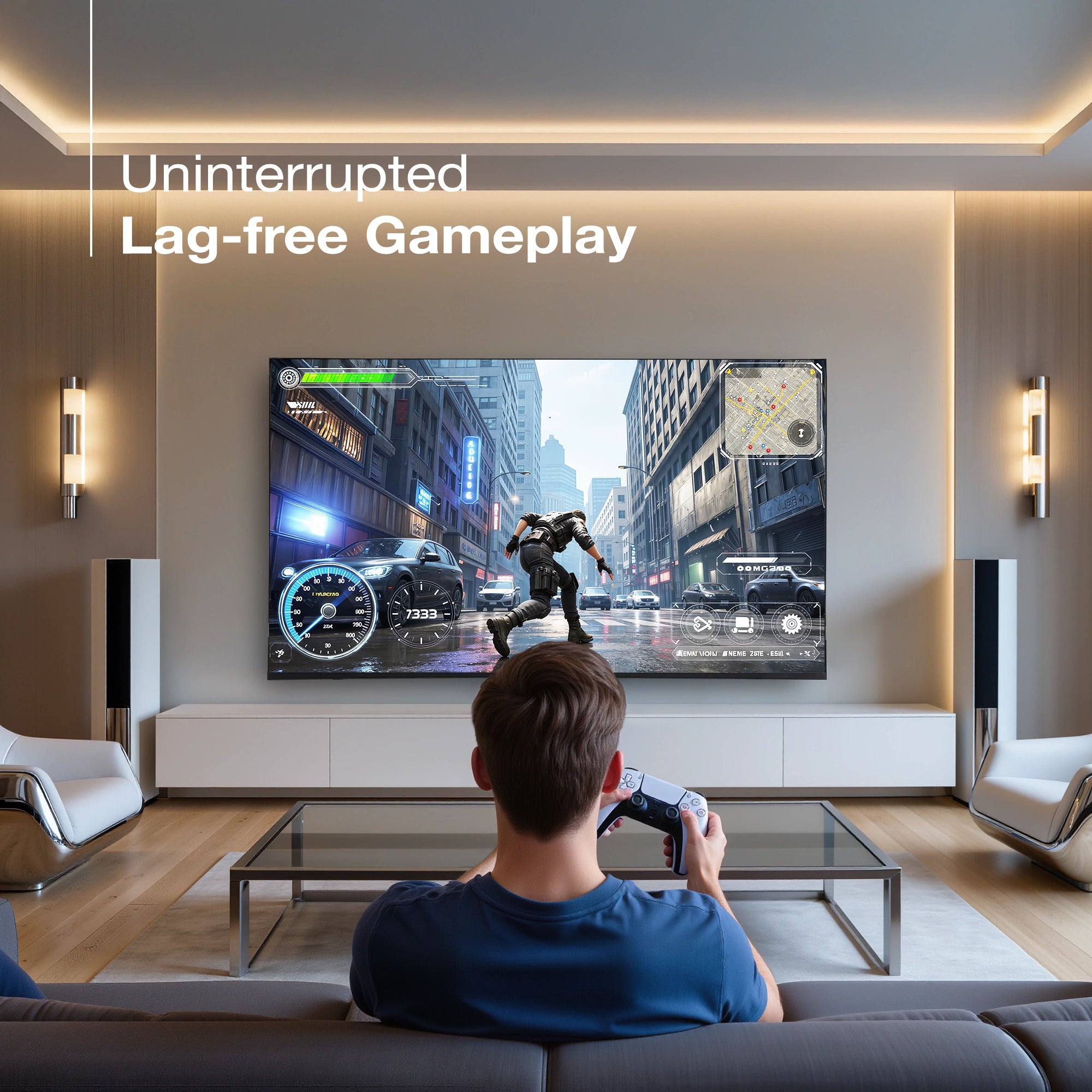
Ultra-Smooth Gaming
Enjoy smoother gaming and fast-action scenes with TrueSync MEMC and HSR 120Hz. Every frame stays sharp, fluid, and blur-free—giving you faster reactions, clearer movement, and a real edge whether you're gaming, streaming sports, or watching high-speed action.
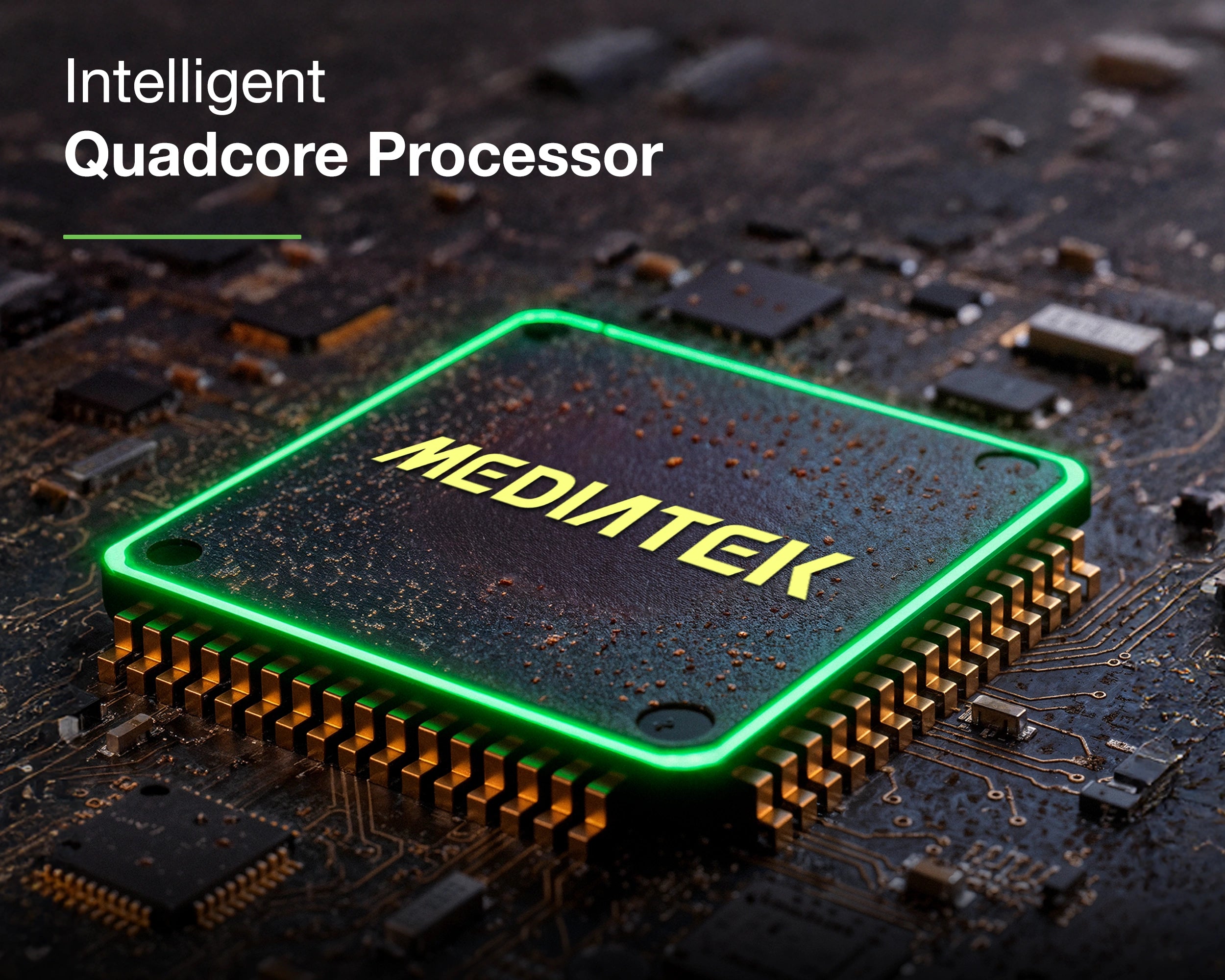
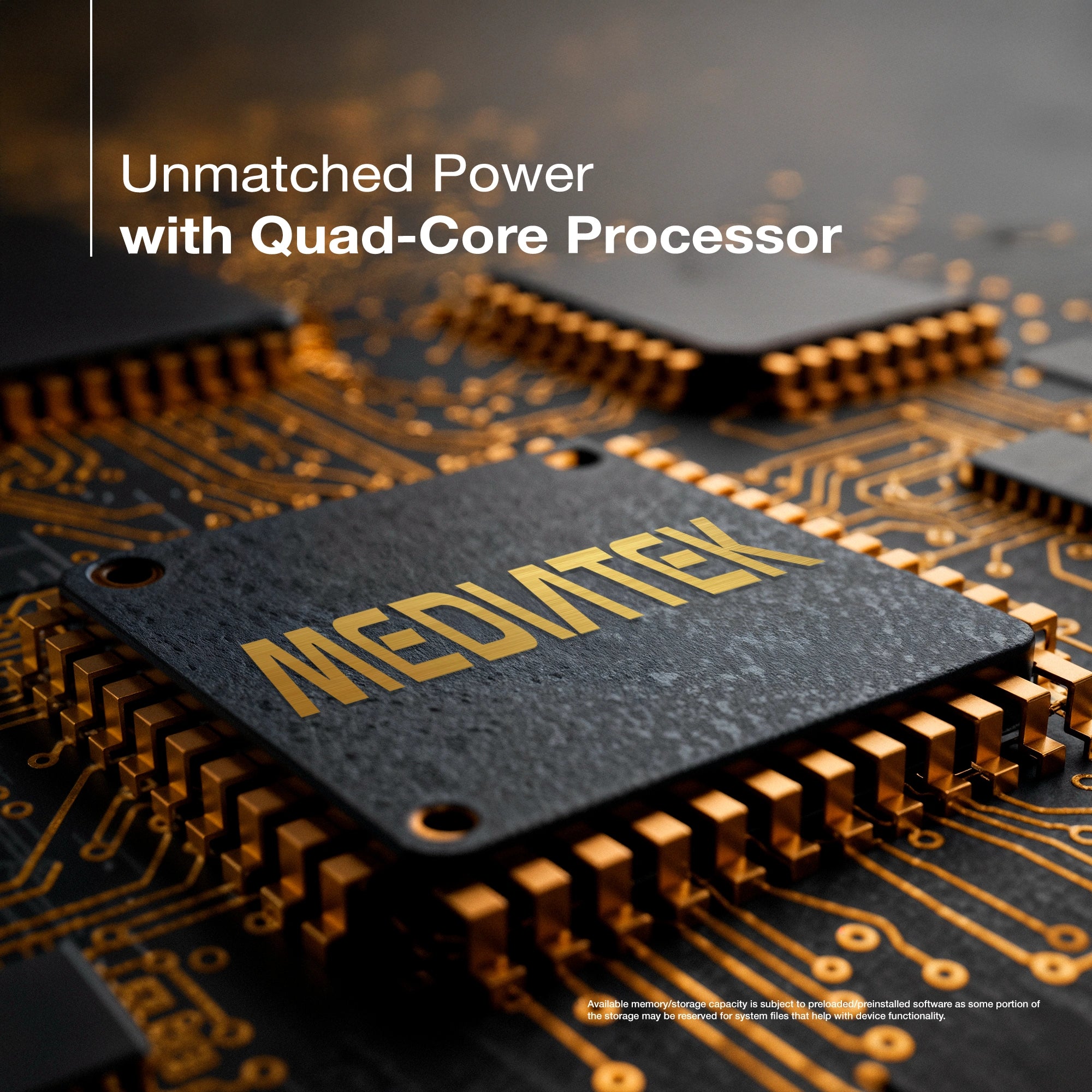
Powerful Quad-Core Performance
The Quad-Core processor paired with 2GB RAM and 32GB storage ensures fast app launches, smooth multitasking, and responsive navigation—delivering a seamless, lag-free entertainment experience every day.
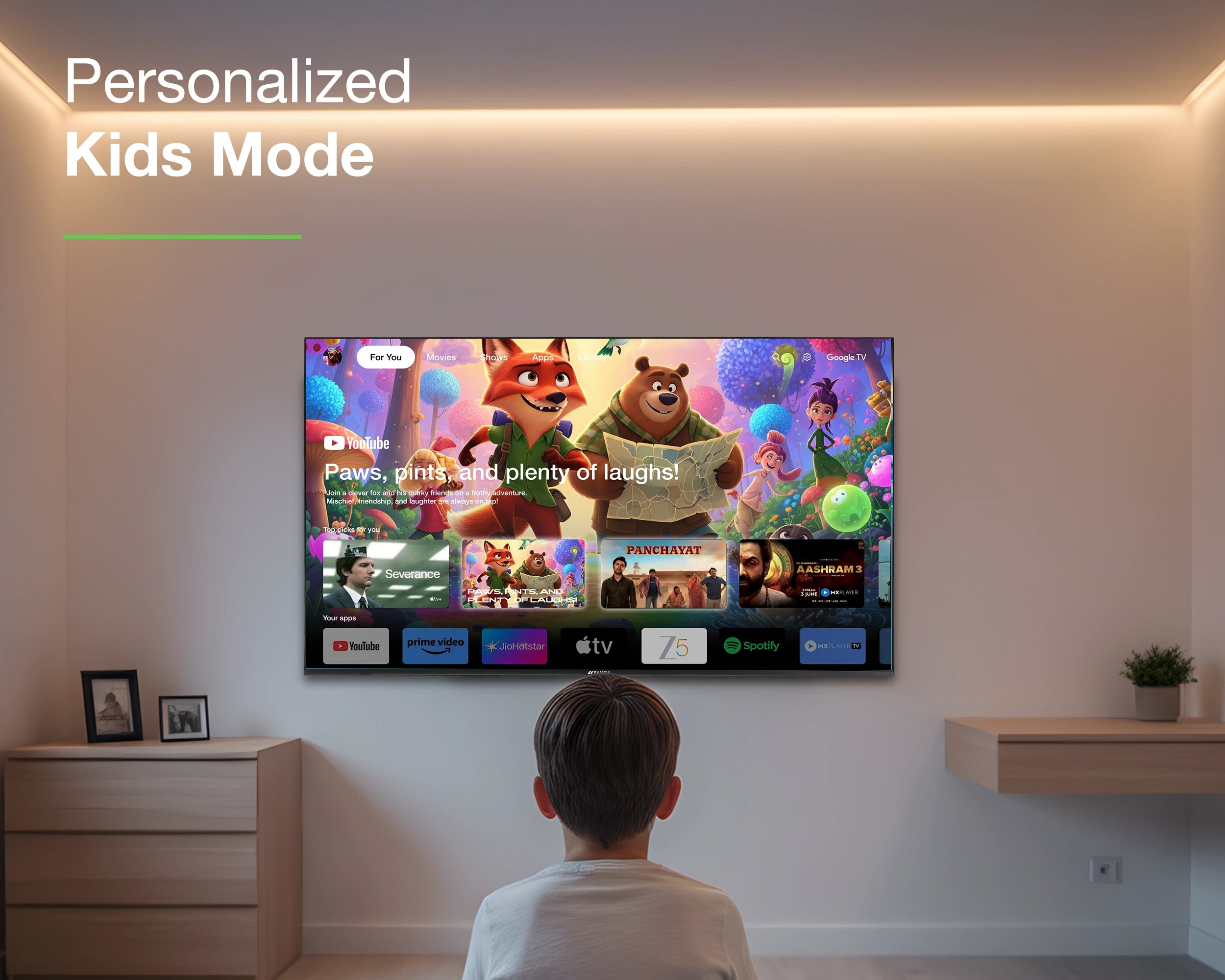
Personalized Google TV
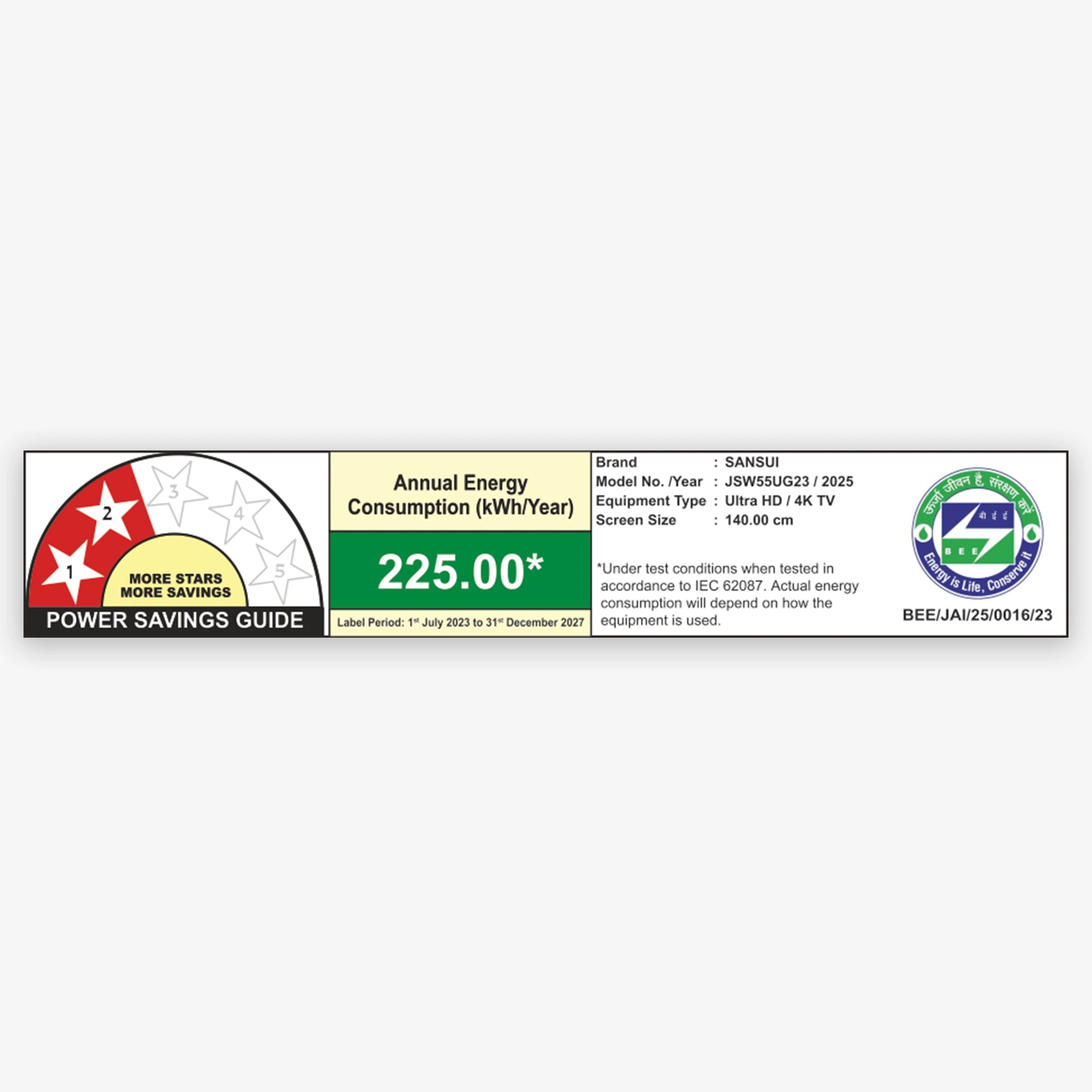
Google TV powered by Android 14 brings a smoother, more personal viewing experience. Enjoy quick setup, tailored recommendations, easy navigation, and built-in tools like Kids Mode and energy-saving features—all designed to make everyday watching simpler and smarter.
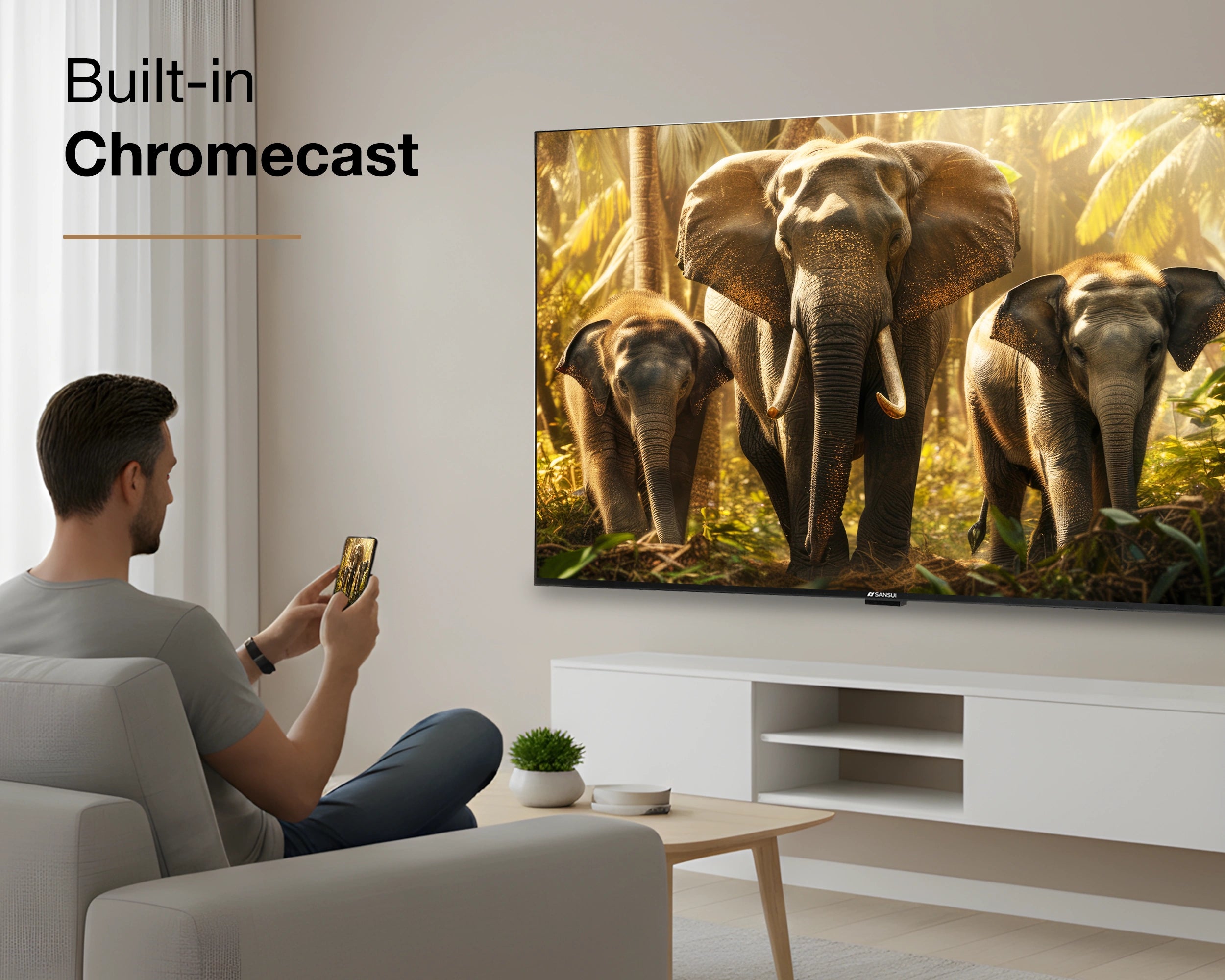
Effortless Screen Casting
Cast your favorite movies, shows, and apps instantly from your phone to the TV with built-in Chromecast for a seamless streaming experience.

Satellite Tuner
No Set-Top Box | No Subscriptions | Endless Entertainment.
Enjoy convenient entertainment with Sansui Google TV and its built-in satellite tuner. Stream free DD Free Dish channels—news, movies, and regional—directly through the Live TV app, seamlessly woven into your Google TV experience.
Product details
Please Note : Images shown in standard accessories are for reference only.
OS
Google TV (5.0) | OS Ver. Android 14.0
Display Brilliance
Superior Panel
Sonic Experience
Performance
Connectivity
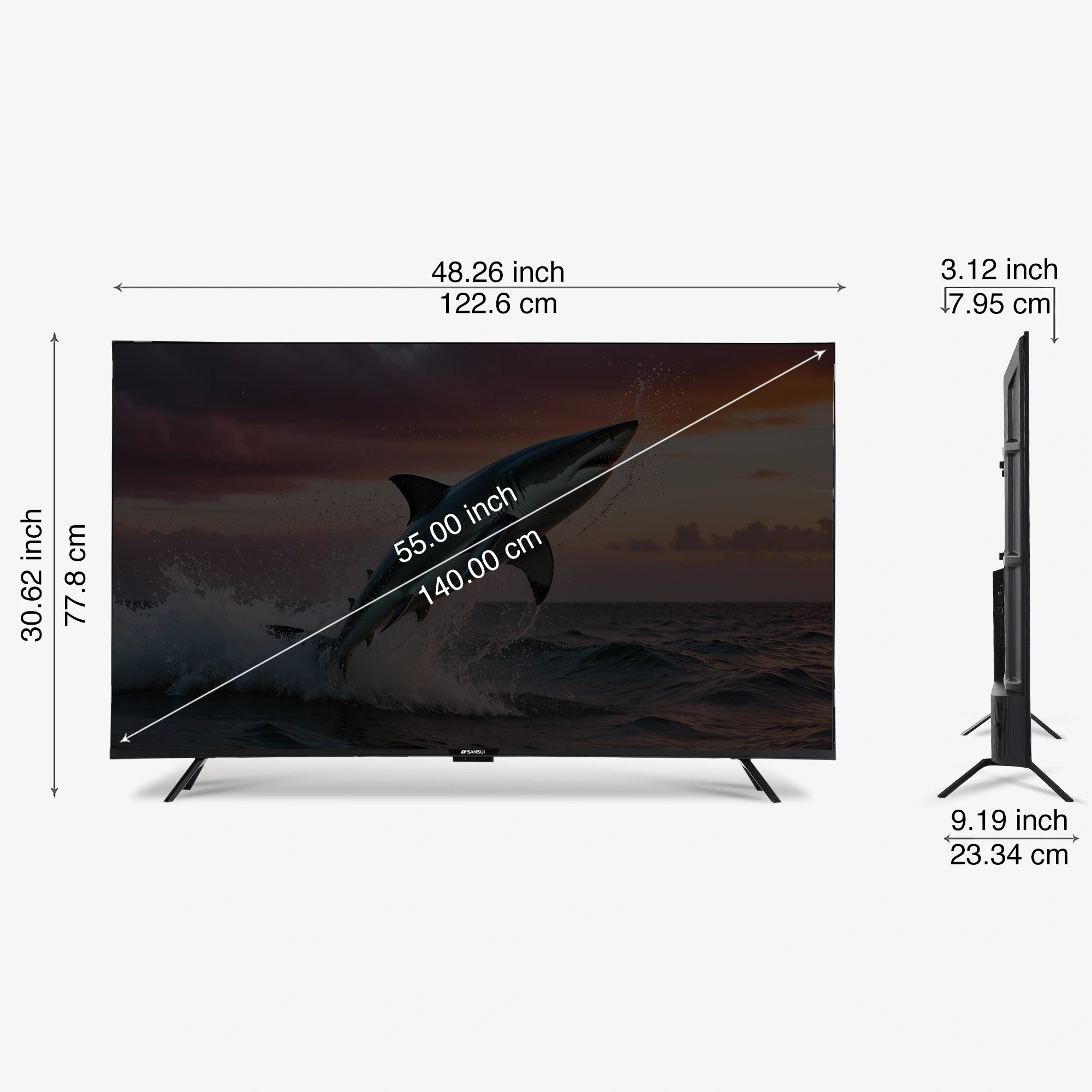
Dimensions
Warranty
Installation & Demo
Manufacturing, Packaging and Import Info
Standard Accessories

1 Piece TV

1 Piece User Manual with warranty Card

1 Piece Remote Control

1 Pair Batteries

1 Set Base stand

1 Pair Screws

1 Piece Wall mounting set

1 Piece Power cord

1 Piece Mini AV cable


FAQs
Please read our FAQs page to find out more.
How do I connect my Sansui TV to Wi-Fi?
To connect your Sansui TV to Wi-Fi, go to the Settings menu, select Network, then choose Wi-Fi. Find your network, enter the password, and connect.
Does Sansui TV support Google Assistant?
Yes, Sansui TVs support Google Assistant. You can use voice commands to search for content, control your TV, and access other smart home features.
How can I use the inbuilt Chromecast on my Sansui TV?
Ensure your phone/tablet and TV are connected to the same Wi-Fi network. Open a Chromecast-supported app, tap the Cast button, and select your Sansui TV.
What types of connectivity options are available on Sansui TVs?
Sansui TVs offer various connectivity options, including HDMI dual connectors, Bluetooth, Wi-Fi, and twin USB ports.
How to Screencast for Google TV?
First, connect both your TV and mobile device to the same Wi-Fi network. If you haven’t already, download and install the Google Home app on your mobile. Make sure your mail ID is configured on the TV. Open the Google Home app on your mobile, and at the bottom, tap the second option tab “Devices”. You will see your TV brand name listed—tap on it to start casting your mobile screen to the TV.
How do I connect an LED TV to a set-top box?
You can connect your LED TV to the set-top box using one of the following options: AV cables or HDMI cable. In TV source option, select input device AV Input/Composite Input or HDMI.
How to Stop Ads in LED?
Go to Settings, then select “Device preference/System/Advance setting” then turn off shop mode/E-Pop up.
What should I do if my LED TV displays a “no signal” message?
Check your input source, ensure cables are connected properly, and verify that the external device (like a setup box) is powered on.
What if TV is unable to connect with Wi-Fi, showing “No Internet/Limited Connection?
Go to settings and update the current date/time or use network provided date & time option.
How do I update the software on my Sansui TV?
Go to the Settings menu, select About, and then choose Software Update. Follow the on-screen instructions to check for and install updates.
How to turn off Sleep mode?
Go to TV setting, select the system option, Click the time option, On/Off.